





Please select the icon below that relates to your need for assistance.
 Contact Us
  Help With Billing/Account Management
  My Account Login
 Service Map


Please select the icon below that relates to your need for assistance.
FOCUS Broadband Welcome Kit
We’ve put together this guide to help provide you with more information on your services as well as some helpful tips on how to ensure you get the best experience possible from FOCUS Broadband.
FOCUS Broadband Welcome Kit
Help with Internet (Ayuda con Internet)
Internet Support Contact Information
Repair: (833)663-1241 Available 24 hours a day, 7 days a week
Please have the following available when you call:
- Your Username
- Your Password
- The operating system used on your computer
- The make, model and speed of your modem
- The software you are having problems with
- The full error message given when the problem occurred
- Any reference number if this is in relation to a prior call
- Any special circumstances surrounding the error (e.g. Just installed new software or hardware)
Incoming Mail (IMAP): imap.atmc.net
Outgoing Mail (SMTP Server): smtpauth.atmc.net
DNS Server: 216.99.127.7 || 216.99.127.8
Internet Troubleshooting Tips (Consejos para solucionar problemas de Internet)
Haz clic aquí Consejos para solucionar problemas de Internet
Paso 1: Revise su equipo
-
Asegúrese de que su router (puerta de enlace inalámbrica) esté encendido.
- Verifique que las luces de Wi-Fi (2.4 GHz y 5 GHz) estén encendidas y parpadeando.
- Estas luces parpadeantes indican que hay tráfico de datos a través de la conexión de red.
- Si está utilizando una conexión por cable, el puerto LAN donde está conectado el cable Ethernet debe encenderse si el dispositivo que recibe Internet está encendido
- Verifique que las luces de Wi-Fi (2.4 GHz y 5 GHz) estén encendidas y parpadeando.
Paso 2: Pruebe otros dispositivos
-
Verifique si otros dispositivos están funcionando en la red. Si es así:
- Reinicie el dispositivo que tiene problemas para conectarse.
- Confirme que esté conectado a su red de FOCUS Broadband.
- Intente cambiar entre una conexión por cable y una conexión inalámbrica, si es necesario.
- Estos pasos pueden ayudar a identificar qué tipo de conexión está causando el problema.
Paso 3: Reinicie su equipo
-
Reiniciar el equipo puede resolver muchos problemas comunes de conexión, incluyendo la falta de acceso a Internet.
- Para reiniciar su router:
- Desconecte el cable de alimentación.
- Espere 30 segundos y vuelva a conectarlo
- Permita varios minutos para que se reconecte por completo.
- Para reiniciar su router:
- Después de que el router se reinicie, reinicie también el dispositivo que estaba teniendo problemas de conexión. Esto restablecerá la información de conexión en ese dispositivo y permitirá establecer una nueva conexión.
Si necesita ayuda adicional, experimenta algún problema o tiene preguntas, comuníquese con Soporte Técnico al 833-663-1241.
Step 1: Check Your Equipment
-
Make sure that your Router (Wireless Gateway) is powered on.
- Confirm that the Wi-Fi lights (2.4GHz and 5 GHz) are on and flashing.
- These flashing lights indicate data traffic across the network connection.
- If you are using a hardwired connection, the LAN port with the ethernet cable should light up if the device receiving internet is powered on.
- Confirm that the Wi-Fi lights (2.4GHz and 5 GHz) are on and flashing.
Step 2: Test Other Devices
-
Confirm that any other device is working on the network. If so,
- Reboot the device is that is having trouble connecting.
- Confirm that it is connected to your FOCUS Broadband network.
- Try switching between a wired and wireless connection if needed.
- These steps can help identify the type of connection that is giving you trouble.
Step 3: Restart Your Equipment
-
Restarting equipment can solve many common connection issues involving no internet.
- To reboot your router:
- Unplug the power cord
- Wait 30 seconds, plug it back in.
- Allow several minutes for it to fully reconnect
- To reboot your router:
- After the router restarts, reboot the device that was having connection issues. This should reset the connection information in that device, allowing for a new connection.
If you require further assistance, experience any issues, or have questions, please contact Technical Support at 833-663-1241.
Speed Test
What to Expect
As your Internet service provider, FOCUS Broadband is committed to giving you the highest capacity access available, whether it be through cable modem or fiber optic technology. Each speed tier that we advertise is listed as a maximum attainable download speed delivered through a wired connection.
Any Internet capable device in your home (desktop, laptop, tablet, smartphone, game system, smart TV, smart appliance, etc.) that is not physically connected to your router via an Ethernet cable is considered a wireless device that must access the Internet through Wi-Fi. A speed test performed over a wireless network will not give you a valid test result due to a variety of factors, many of which are related to the environment of your premise. Wireless network performance is highly dependent on how your home is constructed, the placement of your router, and the types and number of devices that are connected to your network.
How to prepare for your speed test
A speed test is an application that attempts to determine your maximum possible speed at the time of testing. The best way to get the most accurate test result is to test a computer that is physically connected to your router through an Ethernet cable and power off all other wired and wireless devices that are connected to your network. Your computer’s performance can also influence speed test results. Before performing a speed test, close out all other programs and any other Internet activities to get the best result.
If you have any questions or concerns about the performance of your Internet speed, contact our support center 24 hours a day, 7 days a week at 1-866-951-4357.
Equipment
Compatible Cable Modems
FOCUS Broadband provides cable modems at no additional charge to the customer. If you choose to provide your own cable modem, please select from one of the modems listed below.
| Modem Name | Model Number | Voice Supported | Description | Compatible Broadband Speed | Wi-Fi Capable |
| Arris S33 SURFboard DOCSIS 3.1 Cable Modem Arris S33 SURFboard Guide |
Model #: S33 (V1 model only) | Voice Supported: NO* | 2.5 Gbps Ethernet port plus an additional 1 Gbps Ethernet port, the SURFboard S33 DOCSIS 3.1 Cable Modem (V1 model only) | Up to 1G | No |
| ARRIS SURFboard® SB8200 DOCSIS® 3.1 Cable Modem ARRIS SURFboard 8200 Guide |
Model #: SB8200 (V3 model not supported) | Voice Supported: NO* | Ideal for Gigabit+ speed, 4K Ultra-HD Video Streaming, and Virtual Reality Gaming. Two 1-Gigabit Ethernet ports DOCSIS 3.0 Cable Modem | Up to 1G | No |
Fiber services do not require additional equipment.
For better Wi-Fi throughout the home, please view our Plume HomePass® Premium Wi-Fi products.
*Some modems may not support all FOCUS Broadband Services
*The modem model(s) listed above have been approved to work on the FOCUS Broadband network for delivery of DOCSIS broadband services. Customer-owned modems may be used for data services only. Voice services are not available using a customer-owned modem. Any attempt to reprogram or alter modem settings could render them incompatible and unusable on the FOCUS Broadband network. Because some companies use firmware that is proprietary to their technology, modems that were previously used to receive service from another provider may not be compatible with the FOCUS Broadband network. FOCUS Broadband recommends the purchase of a brand new modem to ensure compatibility with the FOCUS Broadband network. The above modems listed, as well as any customer-owned routers, may have speed limitations below the maximum speed subscribed to in the customer’s Internet package. Because installation of cable modem service requires the installation of filters and conditioning of the broadband circuit on the customer's premise, an installation appointment is required. FOCUS Broadband does not provide technical support for customer-owned modems.
Instructional Videos
Internet Service Instructional Videos
The Fiber Optic Advantage
Discover the benefits of fiber-optic internet for your home. From lightning-fast speeds and increased bandwidth to dependable connectivity, see why more households are making the switch to fiber.
Where Should I Place My Router?
Upgrading to a newer DOCSIS modem is easy. Join our Training Coordinator as he demonstrates the simple steps to replace your modem and get the new modem up and running.
How Fiber Internet Works
Discover the power of fiber internet and how it works. Learn how fiber delivers fast, reliable connectivity and explore the benefits it brings to your home.
What is Bandwidth?
Bandwidth is the maximum amount of information that your connection can handle at a given time. As more devices connect to your home network, more bandwidth is needed to keep everything running smoothly. Learn more about bandwidth and discover which level is the best fit for your household’s needs.
Where Should I Place My Router?
The placement of your router directly impacts the Wi-Fi signal within your home. It is important to keep your router away from barriers and appliances in your home to avoid interruptions. Follow along to learn some of the best recommendations for the router placement in your home.
Swapping your Modem
Where Should I Place My Router?
Upgrading to a newer DOCSIS modem is easy. Join our Training Coordinator as he demonstrates the simple steps to replace your modem and get the new modem up and running.
Help with Email
Server Settings
Please see our server settings instructions to help you set up your email software with FOCUS Broadband.
Incoming Servers
POP Server Setting:
- Server: mail.atmc.net
- Port 995
- SSL: Enabled
- Username: user@atmc.net
IMAP Server Settings:
- Server: imap.atmc.net
- Port: 993
- SSL: Enabled
- Username: user@atmc.net
Outgoing Server
STMP Server Settings:
- Server: smtpauth.atmc.net
- Port: 587/465
- SSL: Enabled
- Username: user@atmc.net
User/Pass Authentication Required
Contacts and Calendars Client Settings
CaIDAV Server Settings:
- Server: imap.atmc.net
- Username: user@atmc.net
CarDAV Server Settings:
- Server: imap.atmc.net
- Username: user@atmc.net
Setting Up Email
Please see our email software set up instructions to help you set up your email software with FOCUS Broadband.
*Please ensure that you are using the most up-to-date version of your email provider to ensure optimal compatibility and security protection.
- Setting Up a New Email Address (Gmail, Outlook, iCloud, and Proton Mail)
- Adding a New Email Account in Mac Mail
- Adding a New Email Account to Outlook in Windows
- Configuring the Android Email Application and Tablet Devices
- Creating a New Email Account in Thunderbird
- Add an Email Account to your iPhone or iPad
Email Troubleshooting
How do I get help for my Webmail?
Webmail offers many email management fuctions. If you are having any issues or questions regarding your FOCUS Broadband webmail service, please call: 866-951-4357 or use the tutorial below to learn more about Webmail navigation.
Why was my message blocked as spam?
Our spam filters use a variety of criteria to determine if a message is spam. If a legitimate non-spam message you have attempted to send or receive was misclassified as spam, you may submit the message to our support team, and in most cases we should be able to correct the scoring, with a small number of exceptions. The following are typical reasons why a message might be blocked as spam:
- The message is forwarded spam message or contains excerpts of spam, or quotes other spam features. This is usually the only case that is not easily corrected. You should expect that forwarded spam will score high. Messages that mention specific spam features -- such as a message warning about email scams and mentioning specific characteristics of that message -- will often be blocked because those specific characteristics may be something the spam filter is looking for. Note that certain types of emails like 3rd party spam quarantine digest summaries (which mention spam subjects), or mail & web server log summaries (which may mention spam domains or email addresses) may be blocked due to mentioning those known spam features.
- The message mentions a legitimate domain that was blocked due to associated spam activity. For example, certain web sites may be hacked by a spammer, and used to store spammy web content that is referenced later in spam messages. These domains may be included in the spam filter when they appear in spam. If we determine that a domain flagged as spammy for this reason is really legitimate, we can remove it from our spam definitions. Other identifiers (e.g. a phone number or street address) associated with spam emails may be similarly flagged. If determined to be legitimate, these will be removed from our spam filters.
- The message contains legitimate content that is superficially similar to spam content may be mistaken for spam. For example, a legitimate email concerning a financial transaction might be similar enough to a money transfer scam to have a high score. Usually the spam classifier can be adjusted to correct the scoring.
- The message does not have any obviously spammy content, but nonetheless was classified as spam. This can happen in some circumstances because the spam classifier makes a probabilistic calculation based on how frequent certain features (e.g. words) appear in spam messages versus legitimate messages. While this classification mode is very accurate, it is possible for statistical outliers to occur that are classified as spam without any obviously spammy text. The situation is analogous to what happens when you flip a fair coin 20 times, record the number of heads and tails, and then repeat the 20-flip experiment many times. On most attempts you expect to get approximately half heads, half tails. But if you try enough times, you will on rare occasions get sets with almost all tails. When this occurs it is not an indication the coin is "broken", it is just a statistically improbable event that has been observed. Similarly, legitimate messages may be scored as spam due to a skewed feature probability distribution. As in the previous case, this type of scoring problem may be corrected by adjustments to the spam classifier.
How do I check my email from another computer?
You can check your email using our Web based email at FOCUS Broadband Webmail https://userportal.atmc.net/en/welcome with your browser. Just type your username and password and click log in.
If you are unable to check your email , check your username and password. Make sure that you have the correct username and password set. The username or account name is your unique username you chose. Your username is your email address (username@atmc.net). The password is the same password that you use when connecting to the Internet. Username and password should be typed in correctly. If you are unsure of your password, you may contact a Customer Service Representative at 754-4311 (verification is required before passwords will be released). If your username and password are correct, and you still cannot access your email, contact our repair department at 754-4317 to open up a trouble ticket.
If you can access, send and receive email. The problem is with your email software or a particular message. Make sure that your email software is set up correctly. Outgoing mail server should be set to: smtpauth.atmc.net Incoming mail server should be set to: mail.atmc.net
Create a Strong Password
Creating a strong password helps protect your email account. Strong passwords should be 8 characters long and include at least one:
- uppercase letter A-Z
- lowercase letter a-z
- number 0-9
- symbol !@#$^*,.>_<
Here is an example of a strong password: A@g5!4#B
Unable to Receive Emails
Large or corrupt email on the server: Most likely there is an email that is too large or corrupt on the server. Usually when this happens you will see the email program connect to the server and start downloading files but will stop or lock up before all of the emails are downloaded. To fix this problem, log on to https://userportal.atmc.net and delete the oldest email sitting in you mailbox, log out and then try to access your email through your email software package again.
Your computer disconnects you from the Internet while trying to receive emails: This usually occurs as a result of your Internet settings. Disconnect settings in Internet Explorer can cause your computer to experience frequent disconnects when downloading large files or downloading email.
Unable to Send Emails
Is the Email Address correct? If your email settings are correct and you were able to send/receive email before, verify the email address of the person you are trying to email. You may want to have them send you an email and then reply to their email. If you are able to reply to that person's email, but unable to send them a new email, then the email address is entered wrong.
Is there an email sitting in your Outbox? The most common problem experienced by users is an incorrectly addressed email message sitting in your Outbox. Most email programs will hold email messages before sending them. If one message is incorrectly addressed, the mail server will refuse to send it and all subsequent email messages will not be sent. This problem is common in Outlook software as well as some Netscape email, Internet Mail, etc. To fix this problem you will need to launch your email software and go to the Outbox folder. See the list of all email waiting to be sent. Double click on the first email message to open it. Check that the email address is correct. The email should consist of a valid username at a valid domain name. There cannot be any spaces between the characters. If this does not work or you are unsure of the email address, then delete the first email in your Outbox and try sending the remaining emails. If you are still unable to send emails, delete all emails in your Outbox and reply to an email you have been sent. If you are able to reply to that email, then the email address entered in one of the messages that were in your Outbox was wrong.
Large E- mail Attachment: If your settings are fine and email addressed correctly, then make sure that the email you are sending is not larger than 30MB. FOCUS Broadband limits the size of email attachments that can be sent or received to 30 MB. If the file that you are sending is too big, try compressing it. Good software to compress files is WinZip. The receiver should have the same software to be able to decipher the message.
No Relay Error: If you are connected to another provider and trying to send email through mail.atmc.net you will not be allowed to. Most ISPs do not allow relaying through the mail server. Incoming mail server recognizes you by your username and password, so you can check your email no matter what provider you are connected through. Outgoing mails server, the server that handles sending of your email, recognizes you by the IP address, the unique IP address that you are assigned when you connect to FOCUS Broadband. When you connect to another provider our SMTP server will not recognize you as an FOCUS Broadband user. You will need to use the SMTP Outgoing Mail server of the provider you are dialed into.
People say I am sending them a virus, but I have not sent them an email A worm virus can send infected emails without your knowledge. You do not have to create and send, or even forward, an email with a virus attached for other people to receive the virus from you. Certain viruses called worms, when executed automatically sends email with the virus attached to all addresses listed in the infected user's address book.
FOCUS Broadband cannot guarantee, nor take the responsibility for, virus protection on your system, therefore sole responsibility for virus protection lies with the end user. For information on how to clean the virus and prevent future infection, see Virus information. If you need additional assistance, please contact your computer manufacturer or a computer repair shop for professional help with viruses.
Email Security Tips
- Never respond to an email asking for personal or financial information such as your email address, password, Social Security Number, etc. (FOCUS Broadband, PayPal, and your bank are examples of companies that would never ask for personal information in an email.)
- Don't open an email or attachment from someone you do not know or trust.
- Never click on a link or executable file within an email from a company or organization that you do not trust.
- Do keep security software and operating systems currently updated.
Email Security
Email has become an integral part of most of our lives. For many of us, it may be the most common way we communicate with others. Long gone are the days when email was simple text transactions between two users looking at black and white terminals. Today's users expect crisp fonts, colors, inline images, background patterns, HTML and other browser specific formatting as well as the ability to attach moderately sized files to their messages. The evolution of email technology that allows all of these new features has greatly enhanced the experience of email users, but has brought along with it some very common and serious security concerns. Email has historically been the most common method for attackers to get malicious code to unsuspecting users, and while many new and creative tactics are being employed, this method is still frequently use to propagate malicious code.
Email Attachments
Throughout the evolution of email and all the resulting additional features, it is likely that the most prominent would be the ability to "attach" files to email messages. While these changes certainly make the transport of such files simpler and email more useful, they also introduce some technical and security concerns. Email was not designed with these large attachments in mind and actually handles them quite inefficiently. In addition to the inefficiencies of transmitting files this way, it is a huge security risk for users to allow files of unknown origins onto their PC. As many email applications continue to allow more and more "web functionality" directly within the email program, more options are available to attackers. Users should be very cautious when opening email attachments, even from trusted sources. In best practice, email users should only download or open attachments from a recipient that they know and trust, as well as confirming they know what the attachment is before opening it. Opening any unknown email attachment (even from a trusted sender) can immediately infect your PC with malicious code. Some infected machines will further utilize their host's mail application to spread the infection by emailing individuals in that machines address book.
FOCUS Broadband's feature-rich webmail provides its users additional security from storing possibly infectious code on their PCs. Our email network spam filtration will keep the majority of spam and malicious emails from ever reaching the inbox. Any suspicious email that may reach the mailbox can be deleted on our servers before it ever reaches your PC's hard drive.
Loading Web-Content Inside of Email Messages
Some email messages contain images and web content directly in the body of the email. By default, ATMC Webmail will not load these external pages.
This content, if loaded, can validate the existence of an email address to an attacker. A common technique used by spammers is to send out messages blindly to "guessed" email addresses (which are generated from "dictionary" lists or purchased from old spam lists). Once a spammer confirms that an address is valid, it gets moved to an even higher value list in the spam community and will be targeted for even more spam.
Many recent internet attacks have been based on browser or web code exploits. Once attackers find these exploits, they can quickly spread across the internet and will often take users completely by surprise by loading pages inside innocent looking emails. Disallowing the auto loading of external content within email messages provides an additional layer of protection to users.
Clicking on Links or Executable Files Within Emails
Many spam or other malicious messages contain links to websites or even executable files. If you get an email from someone you don't know or a company or organization that you did not subscribe to content from, do not click on links within the body of the message. In the best case scenario, these links may lead to a site and drive up advertising revenue for a site that could use this income to propagate even more malicious behavior. In an even worse scenario the site this link leads you to may contain code that can compromise your PC.
It is never a good idea to run an executable file sent via email. Most respectable vendors will send software with a proper installer for your operating system that is digitally signed for that company. Any time a user elects to run an executable file, that application has access to the PC and could be executing malicious code or installing other code that may run silently in the background.
Mailing Lists and Electronic Advertisements
FOCUS Broadband strongly enforces responsible business and personal email practices requiring that all electronic mailings be CAN SPAM compliant. The guidelines described in this law are minimum guidelines for individuals who wish to send advertisements or any other customer communications. Businesses or civic organizations wishing to conduct business via email are strongly encouraged to maintain their businesses online reputation by adhering to even higher standards by utilizing effective software that requires their recipients to "double opt-in" to their email lists and providing timely responses to unsubscribe requests. There are many companies that provide these types of services to businesses and organizations at low cost, as well as providing access to software or online tools to manage these activities. Any users found to be in violation of these practices can have their email services and/or broadband service suspended immediately. To protect email service for all of its users and to maintain a reputation as a responsible ISP within the internet community, FOCUS Broadband will enforce all aspects of its Acceptable Use Policy.
Interacting with businesses via email can be very convenient and provide timely updates about products that you are specifically interested in. Be sure to thoroughly evaluate a company's privacy policy before providing them with your email address. Additionally you want to ensure that information will only be used by that company for communications that you elect to receive. Less than reputable companies may sell your information to other vendors or attempt to send you communications you do not wish to receive. If you are interacting with a company that you no longer wish to receive communications from, be sure to utilize their unsubscribe option. Simply marking messages that you no longer wish to receive as spam can harm a company's online reputation and cause problems for other customers who are interested in their communications.
Note: Do not attempt to unsubscribe from email communications that you did not sign up for. This can validate that your address is valid and cause you to be targeted for more spam.
Response to Spam or Phishing Emails
Despite the exhaustive efforts that FOCUS Broadband employs to limit spam, there will likely be occasions where every user will receive some sort of Spam message or Phishing email (a fraudulent attempt to elicit personal information by misrepresenting a reputable agency). Often users unfamiliar with these threats are not sure how to handle these communications. Please reference the list at the bottom of this document for valid addresses to report such emails. Most importantly, never respond to such an email. No good will ever come of validating your existence or a successful delivery of unsolicited emails.
ATMC Webmail users can simply select the message and click on the SPAM button on the webmail toolbar to report a message as spam.
Reporting Suspicious Email Communications
If you receive a phishing email which is asking for your personal information such as any account information or passwords DO NOT RESPOND TO IT. FOCUS Broadband will never ask for personal information via email and strongly recommends that our users do not relay such information to any company via any insecure methods.
For webmail users receiving a spam email in your inbox please click the "SPAM" button to report it as spam. If you receive an email in your SPAM folder that is not spam or junk click the "Not SPAM" button.
If you are using a third party email client such as Microsoft Outlook, Mac Mail, or a mail app on a mobile device and you receive an email that is spam, please send the spam to spam@edgewave.com. You will need to create a new message, address it to spam@edgewave.com, then attach the spam message.
Help with Wi-Fi (Ayuda con Wi-Fi)
How-To Connect to Wi-Fi on Your Devices
Wi-Fi FAQ's (Preguntas frecuentes sobre Wi-Fi)
Haz clic aquí para ver las preguntas frecuentes sobre Wi-Fi en español
¿Cuál es la diferencia entre Wi-Fi estándar y Wi-Fi Premium?
El Wi-Fi estándar de FOCUS Broadband es un servicio de "mejor esfuerzo" diseñado para proporcionar una conexión básica de Wi-Fi para un número modesto de dispositivos inalámbricos en un área limitada. Dependiendo del tamaño de su hogar y la cantidad de dispositivos inalámbricos que utiliza, el servicio estándar de Wi-Fi puede no ser capaz de proporcionar conectividad en toda su casa o soportar un aumento en el número de dispositivos inalámbricos. Por otro lado, el servicio Premium Wi-Fi de FOCUS Broadband ofrece nuestra mejor experiencia de Wi-Fi mediante el uso de varias antenas Wi-Fi ubicadas estratégicamente en su hogar para crear una red de malla que elimina las zonas muertas de Wi-Fi y asegura una cobertura completa. Además, el servicio Premium Wi-Fi de FOCUS Broadband monitorea constantemente su señal inalámbrica y cambia automáticamente sus dispositivos inalámbricos a la señal de Wi-Fi que proporciona la conexión óptima.
Hice una prueba de velocidad y no estoy obteniendo la velocidad completa que debería estar recibiendo. ¿Por qué sucede eso?
Puede haber varias razones por las cuales una prueba de velocidad puede parecer un poco lenta. La primera depende de si el dispositivo que está utilizando para la prueba de velocidad está conectado por cable o inalámbricamente. Los dispositivos que se conectan a Internet a través de una conexión por cable proporcionarán los mejores resultados porque no están afectados por la misma cantidad de factores que un dispositivo inalámbrico y ofrecen el mejor rendimiento de velocidad. Los dispositivos inalámbricos pueden ser afectados por interferencias, por lo que las pruebas de velocidad realizadas en dispositivos inalámbricos suelen arrojar velocidades más lentas. Algunos factores que pueden limitar el rendimiento de velocidad hacia dispositivos inalámbricos incluyen: la ubicación del enrutador en el hogar, el tamaño, el diseño y los materiales utilizados para construir el hogar, el número de dispositivos inalámbricos conectados al enrutador Wi-Fi, los protocolos utilizados en el enrutador inalámbrico y los dispositivos conectados a él, la proximidad de señales de radio competidoras en su hogar e incluso en el hogar de sus vecinos.
¿Qué factores afectan la velocidad que obtendré usando Wi-Fi?
Hay numerosos factores que pueden afectar la señal de tu Wi-Fi. Estos incluyen obstrucciones físicas como paredes, muebles, electrodomésticos, etc. Siempre es recomendable tener el camino más claro posible para la señal de Wi-Fi. Una señal de Wi-Fi es similar a una onda de luz o sonido en el sentido de que llega más lejos si no hay nada que la detenga. La ubicación del router también afecta tu velocidad. Cuanto más cerca estén los dispositivos del router, mejor funcionarán. La interferencia de frecuencia inalámbrica de otros dispositivos que utilizan frecuencias de radio también puede afectar tu conexión. Al igual que la congestión en una carretera, la presencia de numerosas señales inalámbricas ralentizará todo. Las propiedades de construcción de tu hogar también pueden ser un factor en tu velocidad. Cuanto más gruesas sean las paredes, menos éxito tendrán las señales inalámbricas al penetrarlas. Y finalmente, el uso. Cuantos más dispositivos estén conectados a tu conexión de banda ancha, más necesitará entregar.
¿Qué es Wi-Fi?
Wi-Fi es una tecnología popular que permite a dispositivos como computadoras, consolas de juegos, teléfonos celulares, tabletas y reproductores multimedia conectarse de forma inalámbrica a Internet. Es posible que veas estándares de Wi-Fi referidos como 802.11 b/g/n/ac/ax/be; estos estándares son los que permiten que los dispositivos Wi-Fi funcionen juntos sin importar el fabricante.
Los dispositivos se conectan a puntos de acceso Wi-Fi, como el Gateway Inalámbrico proporcionado por FOCUS Broadband para sus clientes de Wi-Fi. Los usuarios generalmente pueden seleccionar un nombre de red personalizado (SSID), contraseña y tipo de encriptación para garantizar una conectividad segura.
El servicio Wi-Fi de FOCUS Broadband te permite conectarte a Internet mediante una conexión inalámbrica a través del Gateway Inalámbrico proporcionado por FOCUS Broadband. Una vez instalado, puedes usar cualquier dispositivo habilitado para Wi-Fi para acceder a Internet desde casi cualquier lugar en tu hogar.
Cuando ordenas Wi-Fi, nuestros técnicos especialmente capacitados configurarán tu equipo, crearán tu nombre de red (SSID) y contraseña, y habilitarán la mejor configuración de seguridad para tu equipo. También ofrecemos soporte completo las 24 horas del día, los 7 días de la semana.
¿Cuáles son los requisitos del dispositivo para conectarse a Wi-Fi?
El único requisito para conectar un dispositivo a tus servicios Wi-Fi es que esté habilitado para Wi-Fi. Casi todas las laptops, tabletas, teléfonos inteligentes, sistemas de juegos, etc., más nuevos son compatibles con Wi-Fi, soportando uno de los estándares de transmisión Wi-Fi 802.11 b/g/n/ac/ax/be.
¿Cuáles son los estándares Wi-Fi 802.11g/n/ac?
Todos los dispositivos habilitados para Wi-Fi están construidos según los estándares Wi-Fi 802.11. La mayoría de los dispositivos Wi-Fi nuevos admiten los estándares 802.11g/n y a menudo los últimos estándares 802.11ac, que permiten una mayor velocidad de transmisión. Todos los Gateways Inalámbricos de FOCUS Broadband admiten capacidades de transmisión 802.11/g/n, lo que te permite obtener una velocidad aún mejor y más rápida en toda tu casa.
¿Está disponible Wi-Fi para Apple?
Sí. Casi todos los productos de Apple admiten los estándares 802.11 g/n. Siempre y cuando tus productos Apple estén habilitados para Wi-Fi y cumplan con estos estándares, deberían funcionar con Wi-Fi.
¿Cómo conecto mis dispositivos a la red Wi-Fi?
Con la amplia variedad de sistemas operativos que se ejecutan en dispositivos numerosos y variados, frecuentemente habrá diferentes pasos para conectar cada uno a tu red Wi-Fi.
Sin embargo, los pasos generales a continuación deberían servir como guía para conectar la mayoría de los dispositivos.
- Asegúrate de que el Wi-Fi esté activado en tu dispositivo.
- Selecciona tu SSID de la lista de redes disponibles y elige Conectar.
- Cuando te lo solicite tu dispositivo, ingresa la contraseña de tu Wi-Fi (configurada por ti y tu técnico durante la instalación y anotada en la tarjeta de información que te proporcionó).
- Tu dispositivo debería aparecer como conectado a tu red Wi-Fi (SSID).
- Confirma que estás conectado navegando por Internet o usando una aplicación que requiera conexión a Internet para funcionar.
Mira nuestros Videos Instructivos en la sección de Ayuda con Internet arriba para ver cómo conectar tu iPhone, smartphone Android, reproductor Blu-Ray o Smart TV al Wi-Fi.
¿Todos los dispositivos funcionan igual al usar una conexión Wi-Fi?
No, los dispositivos varían ampliamente en cuanto a rendimiento de Wi-Fi. Tanto es así que mientras un dispositivo puede funcionar muy bien donde estás, otro puede funcionar de manera bastante diferente incluso en el mismo lugar exacto. Los factores que afectan el rendimiento de Wi-Fi de un dispositivo pueden incluir:
- Radio Wi-Fi (chipset)
- Antena
- Factores ambientales y la composición física del dispositivo (metal, plástico, etc.)
- Accesorios comprados para el dispositivo, como estuches y cubiertas
¿Puedo acceder a dispositivos en mi red doméstica a través de Wi-Fi como si estuviera en mi LAN?
Sí, los dispositivos conectados a la red Wi-Fi tendrán acceso a dispositivos conectados a la misma Red de Área Local (LAN). Siempre que los dispositivos conectados, como una impresora, estén en la misma red y estén configurados para permitir a los usuarios compartir archivos y dispositivos, la experiencia debería ser la misma.
¿Qué tan rápida es la Wi-Fi?
La mayoría de los dispositivos habilitados para Wi-Fi vendidos hoy en día admiten los estándares Wi-Fi 802.11 g/n. Debido a esto, tus velocidades variarán principalmente según tu plan de Internet, la ubicación de tu Gateway Inalámbrico, la actividad en Internet y las capacidades de Wi-Fi de tu dispositivo.
Las velocidades de banda ancha alcanzables a través de Wi-Fi variarán según varios factores, incluyendo el número y tipo de dispositivos conectados, la proximidad de redes Wi-Fi competidoras y variables adicionales dentro del hogar.
El servicio Premium Wi-Fi opcional de FOCUS Broadband está diseñado para ayudar a los clientes a eliminar áreas sin cobertura en sus hogares. Sin embargo, el servicio Premium Wi-Fi no garantiza cobertura Wi-Fi en toda la propiedad del cliente, ni garantiza la entrega de la velocidad completa del paquete a dispositivos inalámbricos. Las velocidades máximas alcanzables en los planes de 2 GB y 5 GB requieren una conexión por cable a dispositivos capaces de soportar tales velocidades. Las velocidades entregadas a través de Wi-Fi con estos planes estarán limitadas por la capacidad del equipo Wi-Fi y los dispositivos conectados a él. El rendimiento máximo es típicamente de 500-600MB con Wi-Fi 6 y 700-800MB con Wi-Fi 6e y Wi-Fi 7.
¿Cómo afectará agregar Wi-Fi a la velocidad y/o calidad de mi conexión a Internet en mis computadoras cableadas?
Wi-Fi permite que los dispositivos inalámbricos se conecten a tu conexión de Internet. Dado que todos tus dispositivos conectados a Internet, ya sean cableados o inalámbricos, compartirán la misma conexión a través de tu Gateway Inalámbrico, es importante dimensionar correctamente tus necesidades de Internet. Por ejemplo, si tu actividad requiere una gran cantidad de ancho de banda continuo dedicado, como la transmisión de video o descargas grandes, es posible que notes velocidades más lentas en ambos tipos de dispositivos. La velocidad/calidad de Internet se ve más afectada por el plan de Internet que elijas.
¿Por qué mi velocidad de Wi-Fi es más lenta que la velocidad ofrecida por el plan de Internet al que estoy suscrito?
Por más rápida que sea nuestra Wi-Fi, la conexión a través de Wi-Fi no es tan rápida como la conexión a través de una conexión por cable. Sin embargo, hay muchas cosas que puedes hacer para aprovechar al máximo tu red Wi-Fi.
¿Qué tan segura es la Wi-Fi de FOCUS Broadband?
En el momento de la instalación, tu técnico activará la mejor configuración de seguridad (WPA2-AES) en tu Gateway Inalámbrico. Esto protegerá tu Wi-Fi y evitará que usuarios no autorizados accedan a tu red.
¿Tengo que comprar algún equipo adicional para Wi-Fi?
No. FOCUS Broadband te proporciona un Gateway Inalámbrico, un solo dispositivo que sirve como módem de Internet y enrutador inalámbrico, y no se requiere ningún otro equipo especial. Si eres un cliente actual y deseas agregar Wi-Fi, es posible que necesites actualizar tu equipo.
¿Qué es un Gateway Inalámbrico?
Un Gateway Inalámbrico arrendado de FOCUS Broadband es una sola caja que funciona como módem de Internet y enrutador inalámbrico. Nuestros Gateways Inalámbricos admiten lo último en capacidades Wi-Fi con soporte de cifrado WPA-AES.
¿Cuál es el alcance del Gateway de FOCUS Broadband?
En condiciones óptimas, los usuarios pueden conectarse desde hasta 150 pies de distancia, lo cual debería proporcionar suficiente cobertura para conectarse desde casi cualquier lugar en tu hogar. Sin embargo, el alcance real variará según la ubicación de tu Gateway Inalámbrico, la construcción de tu hogar, el dispositivo Wi-Fi que estás usando y cualquier interferencia que puedas tener en tu entorno.
¿Cómo accedo a la configuración de mi Gateway Inalámbrico?
Contacta el soporte de FOCUS Broadband al 1-866-951-4357 y ellos harán los cambios necesarios. Esto asegura la capacidad de restaurar todos los cambios en caso de falla del módem.
¿Cuál es la diferencia entre los Gateways Inalámbricos Wi-Fi y otros enrutadores inalámbricos que se pueden comprar en tiendas minoristas?
Con Wi-Fi de FOCUS Broadband puedes relajarte porque no hay necesidad de que compres nada y nuestros técnicos capacitados instalarán, configurarán y probarán la red por ti. Después, proporcionaremos soporte al cliente las 24 horas del día, los 7 días de la semana. Desafortunadamente, los enrutadores inalámbricos de terceros no pueden ser instalados por nuestros técnicos ni podemos ofrecer soporte técnico después de la instalación.
¿Ofrece FOCUS Broadband la capacidad de conectar dispositivos de Internet mediante conexión por cable?
En la mayoría de los casos, podemos proporcionar puntos apropiados de conectividad a Internet en tu hogar para admitir múltiples dispositivos con conexión por cable. Por favor, contáctanos al 910-754-4311 para discutir los requisitos adicionales de conectividad para tu hogar u oficina.
¿Puedo comprar mi propio módem/router de Internet?
Sí, los clientes de Internet de FOCUS Broadband tienen la opción de comprar sus propios módems y routers. Sin embargo, ten en cuenta que no instalamos ni proporcionamos soporte técnico para ningún equipo que no sea arrendado de FOCUS Broadband.
¿Puedo usar mi propio enrutador inalámbrico si tengo Wi-Fi?
Sí, si prefieres seguir usando un enrutador inalámbrico que ya poseas, puedes conectarlo mediante una conexión Ethernet al Gateway Inalámbrico de FOCUS Broadband. Recomendamos poner el Gateway Inalámbrico en Modo Puente para desactivar la transmisión de su señal Wi-Fi y garantizar el mejor rendimiento Wi-Fi posible. Tu instalador puede ayudarte a poner el dispositivo en Modo Puente durante la instalación.
¿Cómo veo o restablezco el nombre de red (SSID) o la contraseña de mi red Wi-Fi?
Tú y tu técnico configurarán estos durante la instalación inicial de tu Wi-Fi. Debería haber una etiqueta con esta información en la parte inferior del Gateway Inalámbrico.
¿Qué es un SSID?
SSID es un acrónimo de Identificador de Conjunto de Servicios. Comúnmente, se piensa como el nombre de una red Wi-Fi que los usuarios ven cuando están escaneando redes para conectar sus dispositivos. Los SSID son una secuencia de caracteres alfanuméricos (letras o números), distinguen entre mayúsculas y minúsculas y pueden tener una longitud máxima de 32 caracteres.
¿Cómo cambio la configuración de mi Wi-Fi?
En su mayoría, descubrirás que no hay mucha necesidad de hacer cambios en tu configuración una vez que tu Wi-Fi esté instalado. Sin embargo, si necesitas cambiar tu SSID, contraseña u otras configuraciones de Wi-Fi, contacta al soporte al 1-866-951-4357 y ellos pueden realizar los cambios solicitados. Esto asegura que todos los cambios se guarden y se puedan restaurar en caso de falla del módem.
¿Qué debo hacer si cambié la configuración de seguridad de mi Wi-Fi y ahora algunos dispositivos tienen problemas para conectarse a la red Wi-Fi?
Si has cambiado la configuración de tu Wi-Fi, asegúrate de que los dispositivos conectados estén configurados para usar la nueva configuración (por ejemplo, cambiar tu SSID y/o contraseña de Wi-Fi requeriría actualizaciones en cada dispositivo conectado). Además, asegúrate de estar utilizando configuraciones de seguridad Wi-Fi compatibles con tus dispositivos.
Nota: Algunos dispositivos más antiguos con capacidad Wi-Fi pueden no ser compatibles con el cifrado WPA2
con AES. En este caso, FOCUS Broadband recomienda probar el cifrado WPA2 - AES+TKIP como opción de respaldo.
¿Qué es WPS y tus dispositivos lo admiten?
WPS es un acrónimo que significa Configuración Protegida de Wi-Fi. FOCUS Broadband soporta WPS mediante botón de empuje en algunos dispositivos proporcionados por FOCUS Broadband, lo que permite a los usuarios simplemente presionar un botón tanto en el Gateway Inalámbrico como en el dispositivo a conectar (esto incluye botones virtuales como un aviso en la pantalla de tu computadora).
Es probable que aún desees configurar una contraseña para tu red para usar cuando no sea conveniente usar WPS. Para hacerlo, FOCUS Broadband recomienda que los clientes utilicen la configuración WPA2 - AES con una contraseña de 13 caracteres o más para una máxima seguridad.
¿Puedo configurar una red de invitados (SSID) con Wi-Fi?
No, actualmente FOCUS Broadband no soporta establecer un segundo SSID para transmitir una red Wi-Fi para invitados.
What’s the difference between standard Wi-Fi and Premium Wi-Fi?
FOCUS Broadband’s standard Wi-Fi is a best effort service designed to provide a basic Wi-Fi connection for a modest number of wireless devices in a limited area. Depending upon the size of your home and the number of wireless devices you are using, the standard Wi-Fi service may not be able to provide connectivity throughout your home or support an increased number of wireless devices. FOCUS Broadband’s Premium Wi-Fi service provides our best Wi-Fi experience by using various Wi-Fi antenna placed throughout your home to create a mesh network that eliminates Wi-Fi dead zones and ensures Wi-Fi coverage. In addition, FOCUS Broadband Premium Wi-Fi consistently monitors your wireless signal and switches your wireless devices to the Wi-Fi signal that will provide the optimal connection.
I did a speed test and I am not getting the full speed I am supposed to be getting. Why is that?
There could be plenty of reasons why a speed test may look a little slow. The first depends on whether the device you are using for the speed test is wired or wireless. Devices that connect to the internet via a wired connection are going to give the best results because they are not impacted by the same number of factors as a wireless device and give the best throughput for speed. Wireless devices can be impacted by interference, so speed tests conducted on wireless devices typically yield slower speeds. Some factors that can limit the throughput of speed to wireless devices are: the placement of the router in the home, the size, layout and materials used to build the home, the number of wireless devices connected to the Wi-Fi router, the protocols used in the wireless router and the devices connected to it, the proximity of competing radio signals in your home and even your neighbor’s home.
What factors impact the speed I will get using Wi-Fi?
There are numerous factors that can impact your Wi-Fi signal. These include physical obstructions like walls, furniture, appliances, etc. You always want the clearest path possible for your Wi-Fi signal. A Wi-Fi signal is similar to a light wave or sound wave in that it goes farther if there is nothing there to stop it. Placement of your router also impact your speed. The closer the devices are to your router, the better they will work. Wireless frequency interference from other devices using radio frequencies will show your connection. Just like congestion on a highway, the presence of numerous wireless signals will slow everything down. Construction properties of your home can be a factor in your speed. The thicker the walls, the less success wireless signals will have penetrating them. And finally, usage. The more devices that are connected to your broadband connection, the more it needs to deliver.
What is Wi-Fi?
Wi-Fi is a popular technology that allows devices such as a computers, game consoles, cell phones, tablets and media players to wirelessly connect to the Internet. You might see Wi-Fi standards referred to as 802.11 b/g/n/ac/ax/be; these standards are what allow Wi-Fi devices to work together regardless of the manufacturer.
Devices connect to Wi-Fi access points, such as the Wireless Gateway provided by FOCUS Broadband for its Wi-Fi customers. Users are typically able to select a custom network name (SSID), password and encryption type to then ensure secure connectivity.
FOCUS Broadband’s Wi-Fi service allows you to connect to the Internet using a wireless connection through an FOCUS Broadband-provided Wireless Gateway. Once installed, you can use any Wi-Fi enabled device to reach the Internet from almost anywhere in your home.
When you order Wi-Fi, our specially trained technicians will set up your equipment, create your network name (SSID) and password and enable the best security setting for your equipment. We also provide full support 24 hours a day, 7 days a week.
What are the device requirements for connecting to Wi-Fi?
The only requirements for connecting a device to your Wi-Fi services is that it is Wi-Fi enabled. Nearly all newer laptops, tablets, smartphones, game systems, etc., are Wi-Fi enabled, supporting one of the Wi-Fi 802.11 b/g/n/ac/ax/be broadcast standards.
What are 802.11g/n/ac Wi-Fi standards?
All Wi-Fi enabled devices are built to 802.11 Wi-Fi standards. Most new Wi-Fi devices support 802.11g/n and often the latest 802.11ac standards, which all allow for greater throughput speed. All of FOCUS Broadband's Wireless Gateways support 802.11/g/n broadcast capabilities, enabling you to get even better, faster speed throughout your home.
Is Wi-Fi available for Apple?
Yes. Nearly all products from Apple support the 802.11 g/n standards. As long as your Apple product(s) are Wi-Fi enabled and meet these standards, they should work with Wi-Fi.
How do I connect my devices to the Wi-Fi network?
With the wide variety of operating systems running on numerous and varied devices, there are frequently going to be different steps for connecting each to your Wi-Fi network.
However, the general steps below should serve as a guide for connecting most devices.
- Ensure Wi-Fi is turned on for your device.
- Select your SSID from the list of available networks and choose to Connect.
- As prompted by your device, enter in your Wi-Fi password (set up by you and your technician during installation and written down on the information card he gave you).
- Your device should show as connected to your Wi-Fi network (SSID).
- Confirm you are connected by browsing the Internet or by using an application that requires a Internet connection to function.
View our Instructional Videos under the Help with Internet section above to see how to connect your iPhone, Android smartphone, Blu-Ray Player, or Smart TV to Wi-Fi.
Do all devices work about the same when using a Wi-Fi connection?
No, devices vary widely when it comes to Wi-Fi performance. So much so, in fact, that while one device may work great where you are another may work quite differently even in the exact same spot. Factors that affect a device's Wi-Fi performance may include:
- Wi-Fi Radio (chipset)
- Antenna
- Environmental factors and the physical make-up of the device (metal, plastic, etc...)
- Accessories purchased for the device, such as cases & covers
Can I access devices on my home network over Wi-Fi as if I was on my LAN?
Yes, devices connected to the Wi-Fi network will have access to devices that are connected to the same Local Area Network (LAN). As long as connected devices, such as a printer, are on the same network and set to allow users to share files and devices, the experience should be the same.
How fast is Wi-Fi?
Most Wi-Fi enabled devices sold today support 802.11 g/n W-iFi standards. Because of this, your speeds will vary primarily based upon your Internet plan, your Wireless Gateway placement, your Internet activity and your device's Wi-Fi capabilities.
Attainable broadband speeds through Wi-Fi will vary based upon a number of factors including the number and type of devices connected, the proximity of competing Wi-Fi networks and additional variables within the home.
FOCUS Broadband’s optional Premium Wi-Fi service is intended to aid customers in eliminating coverage dead spots throughout their home. Premium Wi-Fi does not guarantee Wi-Fi coverage throughout the customer premise. Furthermore, Premium Wi-Fi does not guarantee delivery of full package speed to wireless devices. Maximum attainable speeds on the 2 GB and 5 GB plans require a wired connection to devices capable of supporting such speeds. Speeds delivered over Wi-Fi with these plans will be limited to the capability of the Wi-Fi equipment and the devices connected to it. Maximum throughput is typically 500-600MB with Wi-Fi 6 and 700-800MB with Wi-Fi 6e and Wi-Fi 7.
How will adding Wi-Fi affect the speed and/or quality of my Internet connection to my wired computers?
Wi-Fi allows wireless devices to connect to your Internet connection. Since all of your wired and wireless Internet connected devices will share the same connection via your Wireless Gateway, it is important to size your Internet needs correctly. For example, if your activity requires a large amount of dedicated continuous bandwidth, such as streaming video or large downloads, you may notice slower speeds on both your wired and wireless devices. Internet speed/quality is most affected by the Internet plan you choose.
Why is my Wi-Fi speed slower than the speed offered by the Internet plan I subscribe?
As fast as our Wi-Fi may be, connecting via Wi-Fi is not as fast as connecting through a wired connection. There are many things you can do, however, to get the most out of your Wi-Fi network.
How secure is FOCUS Broadband’s Wi-Fi?
At the time of installation, your technician will enable the best security setting (WPA2-AES) on your Wireless Gateway. This will protect your Wi-Fi and keep unwanted users from accessing your network.
Do I have to buy any additional equipment for Wi-Fi?
No. FOCUS Broadband provides you with a Wireless Gateway, a single piece of equipment that serves as both your Internet modem and a wireless router, and there is no other special equipment required. If you are a current customer and want to add Wi-Fi, you may need to upgrade your equipment.
What is a Wireless Gateway?
An FOCUS Broadband leased Wireless Gateway is a single box functioning both as an Internet modem and a wireless router. Our Wireless Gateways support the latest in Wi-Fi capabilities WPA-AES encryption support.
What is the range of the FOCUS Broadband Gateway?
In optimum conditions, users can connect from as far away as 150 feet - which should provide enough coverage to connect from just about anywhere in your home. Your actual range will vary depending on the placement of your Wireless Gateway, the construction of your home, the Wi-Fi device you're using and any interference you may have in your environment.
How do I access the settings of my Wireless Gateway?
Contact FOCUS Broadband support at 1-866-951-4357 and they will make any needed changes. This ensures the ability to restore all changes in event of modem failure.
What is the difference between Wi-Fi Wireless Gateways and other wireless routers that can be bought at retail outlets?
With FOCUS Broadband Wi-Fi you can relax because there's nothing for you to purchase and our trained technicians will install, configure and test the network for you. Then, we'll provide 24/7 customer support.
Unfortunately, third party wireless routers cannot be installed by our technicians, nor can we support them after installation.
Does FOCUS Broadband offer the ability to connect Internet devices by wired connection?
In most cases, we can provide appropriate points of Internet connectivity in your home to support multiple wired devices. Please contact us at 910-754-4311 to discuss additional connectivity requirements for your home or office.
Can I purchase my own Internet modem/router?
Yes, FOCUS Broadband Internet customers have the option to buy their own modems and routers. Note, however, that we do not install or provide technical support for any equipment not leased from FOCUS Broadband.
Can I use my own wireless router if I have Wi-Fi?
Yes, if you'd prefer to continue using a wireless router you already own you may connect via Ethernet connection to the FOCUS Broadband Wireless Gateway. We recommend putting the Wireless Gateway into Bridge Mode to turn off the broadcast of its Wi-Fi signal and ensure the best possible Wi-Fi performance. Your installer can assist you with putting the device into Bridge Mode during installation.
How do I view or reset my Wi-Fi network name (SSID) or password?
You and your technician will set these up during your Wi-Fi initial installation. A sticker with this information should be on the bottom of the Wireless Gateway.
What is an SSID?
SSID is an acronym for Service Set Identifier. Commonly, it is thought of as the name of a Wi-Fi network that users see when they are scanning for networks to attach their devices to. SSIDs are a sequence of alphanumeric characters (letters or numbers), are case sensitive and can have a maximum length of 32 characters.
How do I change my Wi-Fi settings?
For the most part you'll find that there isn't much need to make changes to your settings once your Wi-Fi is installed. However, if you do find yourself needing to change your SSID, password, or other Wi-Fi settings, contact support at 1-866-951-4357 and they can make requested changes. This ensures all changes are saved and can be restored in case of modem failure.
What should I do if I changed my Wi-Fi security settings and now some devices are having issues connecting to the Wi-Fi network?
If you have changed your Wi-Fi settings, make sure the connecting devices are set to use the new settings (for example, changing your Wi-Fi SSID and/or password would require updates to each connected device). Also, make sure that you're using Wi-Fi security settings that are compatible with your devices.
Note: Some older Wi-Fi-capable devices may not be compatible with WPA2 with AES encryption. If this is the case, FOCUS Broadband recommends trying WPA2 - AES+TKIP encryption as a fall back option.
What is WPS and do your devices support it?
WPS is an acronym that stands for Wi-Fi Protected Setup. FOCUS Broadband supports WPS Push Button on some FOCUS Broadband provided devices, which allows users the convenience of simply pushing a button on both the Wireless Gateway and the device to be connected (this includes virtual buttons such as a prompt on your computer screen).
You will likely still want to set up a password for your network for use when it's not convenient to use WPS. To do so, FOCUS Broadband recommends that customers use the WPA2 - AES setting with a password of 13 or more characters for maximum security setting.
Can I set up a guest network (SSID) with Wi-Fi?
No, currently FOCUS Broadband does not support establishing a second SSID to broadcast a Guest Wi-Fi network.
Tips for Improving Wi-Fi
Your Internet and Wi-Fi experience is determined by a variety of factors. In order to get the best experience from your Wi-Fi service, keep these tips in mind.
Location, Location, Location
The location of your FOCUS Broadband Wireless Gateway is very important to your overall Wi-Fi experience. Consider these choices and tradeoffs about the location of your Gateway:
- If you use Wi-Fi equally throughout the house, the Wireless Gateway should be placed as close to the middle of your home as possible. This helps provide the best possible Wi-Fi signal throughout.
- If there is a primary media room where you use Wi-Fi the most, the Wireless Gateway should be placed there. This allows you to wire devices that require more bandwidth, such as streaming video or gaming systems, directly into your Gateway and minimize the wireless needs from these devices. If your media room isn’t in the middle of your home, the Wi-Fi signal strength for other devices could be impacted the farther you move from the Wireless Gateway.
Router (Wireless Gateway) Guides

Best Placement for Your Router
- Central Location: Place your router near the center of your home.
- Elevated Position: Make sure your router is on a table or shelf, off of the floor.
- Clear Area: Keep in an open space with minimal obstructions.

Poor Placement for Your Router
- Near Appliances: Large metal equipment can cause interference of signal.
- Near Windows: Signal is attempting to reach the outside of the home, limiting the strong signal inside.
- In Corners: The signal can't spread properly, restricting the coverage available in the home.
Provide a Clear Path
Don’t block your Wireless Gateway’s signal.
- To prevent weakening the Wi-Fi signal, avoid placing it in a closet or cabinet or putting it behind things such as a TV, furniture or staircase.
- Don’t place it on the floor or low to the ground.
- Don’t place it next to windows.
- Open any doors to the room where you’ve placed the Wireless Gateway.
Your home’s construction and environment can interfere with your Wi-Fi’s signal:
| Items that can interfere with Wi-Fi signals | Potential for interference |
| Wood | Low |
| Plaster | Low |
| Synthetic material | Low |
| Tinted glass | Low/Medium |
| Water | Medium |
| Bricks | Medium |
| Marble | Medium |
| Cordless Phone (2.4GHz) | Medium/High |
| Concrete | High |
| Microwave | Medium/High (up to 15 feet) |
| Metal | Very High |
| Refrigerator | Very High |
Use Wired Connections When Possible
As fast as Wi-Fi may be, wireless connections aren't as fast as wired connections. Devices such as streaming video players (such as Roku, Amazon Fire) or gaming systems (such as Xbox, PlayStation) need lots of bandwidth. Whenever possible, connect these devices to your Wireless Gateway via a wired Ethernet connection.
New Devices
All Wi-Fi-enabled devices are built to 802.11 Wi-Fi standards. Most new Wi-Fi devices support 802.11g/n and often the latest 802.11ac standards, which all allow for greater throughput speed. Older standards, such as 802.11b, however, can slow down your Wi-Fi experience. Check your older Wi-Fi devices and potentially upgrade any that support only 802.11b. Once you no longer need the 802.11b standard, sign in to your Wireless Gateway and set your broadcast standard to include only 802.11g/n/. This will lead to improved Wi-Fi performance.
Run One Network
Whenever possible, do not run more than one Wi-Fi network in your home using other routers. Devices that connect to more than one network may have trouble keeping a constant connection, and the networks will interfere with one another. Other challenges include items such as baby monitors, cordless phones and even microwave ovens can also cause interference. Try to ensure that monitors and phones run on separate channels from the 2.4 and 5GHz channels that your Wireless Gateway uses and, if possible, turn off those networks when not in use.
Check Wi-Fi Speeds
Different devices can perform more or less effectively when it comes to Wi-Fi speed. When using our FOCUS Broadband Speed Test, check the Wi-Fi speeds on all your devices when you are near your Wireless Gateway. Be aware of which devices may have lower speeds and might not perform well when they are farther from the Wireless Gateway.
Wi-Fi Interference and Channel Width
If you live in an apartment or townhome, you may have many neighbors who have Wi-Fi networks of their own. This might cause some Wi-Fi interference. If your Wi-Fi devices have trouble connecting, limiting the channel width on your Wireless Gateway may help. To limit the channel width, sign in to your Wireless Gateway and minimize the channel width to 20Mhz for your 2.4 GHz network and 20/40 for your 5GHz network. This may assist in minimizing the Wi-Fi “noise” for your devices.
Find Your Home’s Dead Spots
FOCUS Broadband’s Wireless Gateways use the latest in Wi-Fi technology, however you still may have lower Wi-Fi speeds in certain parts of your house.
As you walk through your home, watch your Wi-Fi ‘”bars”. The farther you are from your gateway, the fewer bars you’ll see on your device. For even more detail, you can use free apps to see the changing Wi-Fi strength as you walk through various rooms of your home. Tools will show a bar measuring actual signal strength in dBms; the higher the score approaching -30 dBm, the better. Signal strength lower than -70 dBm may result in poor Wi-Fi performance.
This feedback will help you determine the best rooms for using your Wi-Fi-enabled devices, especially those requiring high bandwidth, such as streaming video or gaming systems.
Reboot
Like any software, it’s beneficial to occasionally reboot your Wireless Gateway. One great benefit is that the Auto Channel Selection will run and update if it sees any changes to your home’s Wi-Fi environment. This helps to make sure you have the best possible Wi-Fi speeds. Simply unplug your Gateway, wait a moment, and plug it back in. All your devices should automatically reconnect.
Premium Wi-Fi FAQ's (Preguntas frecuentes sobre Wi-Fi Premium)
Haz clic aquí para ver las preguntas frecuentes de facturación en espanol
¿Que es Premium Wi-Fi?
Premium Wi-Fi es un sistema adaptativo de Wi-Fi en malla que reemplaza cualquier punto de acceso Wi-Fi actual en tu hogar. Utiliza el sistema Plume para crear una red adaptable que optimiza continuamente tus dispositivos y tu conexión a Internet, proporcionando velocidades más consistentes en cada habitación.
¿Quién es Plume?
Plume es nuestro socio tecnológico en la oferta de Premium Wi-Fi a nuestros clientes. Los elegimos porque su software y hardware de vanguardia proporciona una experiencia de Wi-Fi en el hogar que está años luz por delante de cualquier otra disponible hoy en día.
¿Cuánto cuesta una suscripción de Premium Wi-Fi?
Premium Wi-Fi cuesta solo $7.50 al mes y es perfecto para la mayoría de los hogares. Se pueden agregar Super Pods adicionales de Premium Wi-Fi para cubrir hogares más grandes por $5.00 adicionales al mes cada uno.
¿Qué está incluido en mi suscripción de Premium Wi-Fi?
Tu suscripción incluye dos (2) Super Pods y acceso a la aplicación Plume Home de Plume, altamente valorada. A través de las funciones Adapt, Access, Guard y Sense de la aplicación, tendrás acceso a controles parentales, protección en línea para tus dispositivos, protección avanzada para el hogar inteligente, bloqueo de anuncios, detección de movimiento y herramientas avanzadas de gestión de Wi-Fi.
¿Necesito la aplicación Plume Home para que funcione Premium Wi-Fi?
Sí. La aplicación Plume Home te permite acceder a tu red de Premium Wi-Fi y gestionar todos los dispositivos en tu red. Se requiere un dispositivo como un teléfono inteligente, tableta o iPad para la aplicación Plume Home.
¿Cuántos Super Pods necesito para mi hogar?
Los dos (2) Super Pods incluidos en tu suscripción son adecuados para la mayoría de los hogares. Durante la instalación, un técnico de FOCUS Broadband te ayudará a determinar el número perfecto de Super Pods para tu hogar.
¿Puedo comprar Super Pods adicionales de Plume fuera de los que ofrece FOCUS Broadband?
Si necesitas Super Pods adicionales, puedes arrendarlos de FOCUS Broadband por $5.00 al mes cada uno. Los Super Pods comprados fuera de FOCUS Broadband no funcionarán con los Super Pods suministrados por FOCUS Broadband.
¿Cómo protege Premium Wi-Fi contra amenazas cibernéticas?
A través de la función Guard en la aplicación Plume Home, Premium Wi-Fi utiliza seguridad basada en inteligencia artificial para proporcionar protección en tiempo real contra amenazas como cripto-minería, ransomware, malware y más, a los dispositivos conectados a tu red doméstica.
¿Cómo protege Premium Wi-Fi mis dispositivos del hogar inteligente?
La función Guard de la aplicación Plume Home incluye protección avanzada para IoT (Internet de las Cosas) que defiende tus dispositivos del hogar inteligente como cámaras, monitores de bebé y cerraduras contra hackers y ciberdelincuentes.
¿Cómo funcionan los controles parentales de Premium Wi-Fi?
Premium Wi-Fi te permite configurar controles parentales para una persona específica, un dispositivo individual, o incluso por ubicación (dormitorio de los niños), todo a través de la aplicación Plume Home.
¿Qué dispositivos funcionan con Premium Wi-Fi?
Todos tus dispositivos habilitados para Wi-Fi no deberían tener problemas para conectarse a Premium Wi-Fi.
Como cliente de Internet de FOCUS Broadband, ¿cómo me suscribo a Premium Wi-Fi?
Puedes hablar con uno de nuestros galardonados Representantes de Atención al Cliente en cualquiera de nuestras seis (6) ubicaciones minoristas o llamar al 910-754-4311 y preguntar cómo Premium Wi-Fi puede funcionar en tu hogar.
¿Qué sucede si uno de mis dispositivos Wi-Fi necesita ser reemplazado?
FOCUS Broadband reemplazará el dispositivo con el mismo tipo de equipo que tiene actualmente. Los dispositivos Wi-Fi 5 y Wi-Fi 6 se reemplazarán por el mismo tipo, y los dispositivos Wi-Fi 7 se reemplazarán por un dispositivo Wi-Fi 7.
What is Premium Wi-Fi?
Premium Wi-Fi is an adaptive mesh Wi-Fi system that replaces any current Wi-Fi access points in your home. Premium Wi-Fi uses the Plume System to create an adaptive network that continually optimizes your devices and your internet connection, providing more consistent speeds across every room. Premium Wi-Fi includes band steering. Band steering is a feature that helps Wi-Fi devices choose the best available frequency band to connect to, based on the situation. This can be especially useful for devices that can use both the 2.4 GHz and 5 GHz bands, as these bands have different characteristics.
What is Plume?
Plume is our technology partner in bringing Premium Wi-Fi to our customers. We chose them because their cutting-edge software and hardware provides a home Wi-Fi experience that is light years ahead of anything else available today.
How much does a Premium Wi-Fi subscription cost?
While Premium Wi-Fi is included with our 2Gig and 5Gig speeds, the cost is just $7.50/mo. for other speed options. Additional Premium Wi-Fi Pods can be added to cover larger homes for an additional $5.00/mo. each.
What is included in my Premium Wi-Fi subscription?
Up to two (2) pods may be provided with Premium Wi-Fi subscription depending upon assessed coverage needs. Plume’s highly rated Plume Home app is also included. Through the app’s Adapt, Access, Guard, and Sense features, you’ll have access to parental controls, online protection for your devices, advanced smart home protection, adblocking, motion detection, and advanced Wi-Fi management tools.
Do I need the Plume Home app for Premium Wi-Fi to work?
Yes. The Plume Home app allows you to have access to your Premium Wi-Fi network and the ability to manage all the devices on your network. A device such as a smart phone, tablet, or iPad is required for the Plume Home app.
How many Pods do I need for my home?
The number of Pods needed for homes varies. During installation, a FOCUS Broadband technician will help you to determine the perfect number of Pods for your home.
Can I buy additional Plume Pods outside of those that FOCUS Broadband offers?
If you need additional Pods, you can lease them from FOCUS Broadband for $5.00/mo each. Pods purchased outside of FOCUS Broadband will not work with any Pods supplied by FOCUS Broadband.
How does Premium Wi-Fi protect against cyber threats?
Through the Guard feature in the Plume Home app, Premium Wi-Fi utilizes AI security to provide real-time threat protection against crypto-mining, ransomware, malware and more to the devices connected to your home network.
How does Premium Wi-Fi protect my Smart Home devices?
The Plume Home app’s Guard feature includes Advanced IoT (Internet of Things) protection that defends your smart home devices like cameras, baby monitors and locks against hackers and cybercriminals.
How do Premium Wi-Fi Parental Controls work?
Premium Wi-Fi allows you to set up parental controls for a particular a person, an individual device, or even by location (kids bedroom), all through the Plume Home app.
What devices work with Premium Wi-Fi?
All of your Wi-Fi enabled devices should have no problem connecting to Premium Wi-Fi.
As a FOCUS Broadband Internet customer, how do I sign up for Premium Wi-Fi?
You can speak with one of our award-winning Customer Care Representatives at any of our six (6) retail locations or call 910-754-4311 and ask them how Premium Wi-Fi can work in your home.
What if one of my Wi-Fi devices needs to be replaced?
FOCUS Broadband will replace the device with the same generation of equipment you currently have. Wi-Fi 5 and Wi-Fi 6 devices will be replaced with the same type, and Wi-Fi 7 devices will be replaced with a Wi-Fi 7 device.
Premium Wi-Fi Support Guides
Premium Wi-Fi Support Videos
Plume HomePass App Demonstration
Explore the features of the Plume HomePass App and enhance your Premium Wi-Fi experience with tools like, Plume Motion, AI Security, HomePass protection, and more.
Cybersecurity
Keeping your personal information safe online has never been more important. Whether you're new to cybersecurity or just looking to stay ahead of the latest risks, we're here to make online safety easier. Our resources are designed to help you stay protected from common online threats with practical tips, helpful blog articles, videos, and expert insights.
How to Spot Common ScamsThink Twice Before Choosing Internet-Connected Devices: Protect Your Home Network
How Can I Stay Cyber Safe Online?
At FOCUS Broadband, your security is a top priority. Learn how to protect yourself from online threats and keep your personal information safe while browsing the internet.
Don't see what you need? Click here to report your service issue or call 833-663-1241 for a quick response.
Please select the icon below that relates to your need for assistance.
FOCUS Broadband Welcome Kit
We’ve put together this guide to help provide you with more information on your services as well as some helpful tips on how to ensure you get the best experience possible from FOCUS Broadband.
FOCUS Broadband Welcome Kit
Help with Streaming TV
How to Set Up Streaming Devices
How to Set Up an Amazon Fire TV Stick
Setting up your new device is easy and only takes a few minutes.
Your device may look different than the ones shown but the steps remain the same.
- Unbox your Amazon Fire Stick and plug it into your TV’s HDMI port. Insert batteries into the remote.
- Plug the Fire Stick’s power cord into an electrical outlet. It is best to use the included power adapter for optimal performance.
- Once the Fire Stick is connected to power and your TV, turn on your TV and switch the TV input to the HDMI port that you plugged the Fire Stick into.
- Connect the Fire Stick to your Wi-Fi network.
- If this is your first time setting up your Fire Stick, it will automatically scan for available Wi-Fi networks. Select your network and enter your Wi-Fi password. Your Fire Stick will now connect to your Wi-Fi network.
- If you have an Amazon account, go ahead and sign in. If not, you can create an account during this step.
- After your Fire Stick has connected to Wi-Fi, it will check for any available software updates.
- If updates are available, download them to ensure optimal performance.
- Finally, you’ll be prompted to set up your Fire Stick’s parental controls.
- You can choose to turn them on or skip this step if it’s not necessary.
How-To Set Up a Roku
Setting up your new device is easy and only takes a few minutes.
Your device may look different than the ones shown but the steps remain the same.
- Plug in your Roku to a TV using an HDMI cable.
- Connect your Roku to your home wireless network.
- You can do this by going to the setting menu, then selecting networks, then wireless.
- Once connected, it will automatically update to the latest version.
- Create a Roku account or sign in to an existing one.
- Follow the on-screen instructions to connect the Roku to your account.
- Add channels by going to the channel store and browsing through the selection.
How to Set Up YouTube TV
Steaming with the YouTube TV app is easy. There are two ways to access your favorite TV shows, movies, and sports coverage.
Setting Up YouTube TV on a Smart TV
- Download the YouTube TV app to your Smart TV.
- Open the app and an activation code will pop up.
- Go to a web browser on your phone or computer and type in tv.youtube.com/start
- Log into your Google Account, type in the activation code, and click “Allow.”
- Browse content to find what you want to watch.
Casting YouTube TV to Any TV
- Grab an external streaming device like a Chromecast, Roku, Apple TV, or Amazon Fire Stick.
- Your device may look different than the ones shown but the steps remain the same.
- Check to ensure that your phone or desktop is connected to the same Wi-Fi network as your external streaming device.
- Open the YouTube TV app on your phone or open the YouTube TV homepage on your desktop.
- Choose what you would like to watch and click “Cast” in the video player.
- From a list of available devices, choose the device you want to cast to and your chosen content will begin to play.
Instructional Videos
How Do I Set Up My Amazon Fire TV Stick?
Learn how to install and set up your Amazon Fire TV Stick so you can stream your favorite movies and shows anytime, right from your home.
Amazon Fire TV Stick Menus & Options
Follow along to learn how to navigate the Amazon Fire TV Stick remote, main menu, search features, app downloads, and more.
How Do I Set Up a Digital Antenna?
If you are ready to cut the cord on cable but don’t want to lose local channels you know and love – a digital antenna may be a good option for your household. Follow along this walkthrough video of how a digital antenna works and discover if it is the right fit for you.
How Do I Set Up a Roku Steaming Stick?
Set up your Roku Streaming Stick in just a few steps and start streaming your favorite content on any compatible TV.
How do I Sign In and Navigate YouTube TV?
Getting started with YouTube TV is simple. Learn how to install the app on your smart TV and navigate the platform in just a few easy steps.
How Do I Set Up an Apple TV?
To set up your Apple TV device, follow these quick steps and explore its features and streaming capabilities.
Why Cut the Cord?
Streaming services continue to grow in popularity. Learning how the switch from cable to streaming platforms can expand your entertainment options.
Help with DIRECTV
How do I get the DirecTV app?
Not sure if your device is supported? Check now.
Go to your device’s app store:
Select the DirecTV app and follow the prompts. Have your DirecTV user ID and password handy for sign-in.
How do I learn about device and stream limits
Most customers can enjoy DirecTV streaming on all compatible devices connected to their home network at the same time and also use up to three of those streams on the go. Learn about device and stream limits.
How do I fix common DirecTV app issues?
Try these tips:
- Check for app updates in your app store. If an update is available, install it and restart your device.
- Check for device software updates and install.
- Close and restart DirecTV app.
- Reboot your phone or tablet.
- Uninstall and reinstall DirecTV app.
- Re-launch the DirecTV app and try again.
To reinstall the DirecTV app:
- Go to your device’s app store: Apple App store, Google Play store, Amazon for Android.
- Select the DirecTV app and follow the prompts for installation.
Instructional Videos
How to Use 3rd Party Apps with DirecTV?
Through DirecTV’s Gemini device, you have access to thousands of the most popular apps on Google Play including Max, Netflix, Prime Video and so much more.
How to Use DirecTV with Cloud DVR
With Cloud DVR, you can record your favorite movies and shows to watch anytime, anywhere. Explore how to schedule recordings and use My Library to watch your recordings with DirecTV.
How to Personalize Your DirecTV Entertainment
Using the Gemini device, you’ll discover how to customize your ideal channel lineup to make your DirecTV entertainment experience even easier.
How to Use Voice Control with Google Gemini
With Google Gemini, you can control your live TV experience, search for your favorite shows, and more – all with your voice. Check out this video to learn more.
DirecTV Overview
Explore how to watch live TV, access your recordings, browse On Demand content, and make the most of your DIRECTV service with this helpful video guide.
Contact DirecTV Customer Support
Didn’t find what you need? Click here to contact DirecTV.
Don't see what you need? Click here to report your service issue or call 833-663-1241 for a quick response.
Please select the icon below that relates to your need for assistance.
FOCUS Broadband Welcome Kit
We’ve put together this guide to help provide you with more information on your services as well as some helpful tips on how to ensure you get the best experience possible from FOCUS Broadband.
FOCUS Broadband Welcome Kit
Annoyance Calls
How to Handle Annoyance Calls
Neighbor Spoofing, Robo-Dialed & Telemarketer Calls
The FCC is warning consumers about "neighbor spoofing" scams where thieves may manipulate caller ID information in ways that make calls appear to have been placed locally. While a call might originate overseas, the caller ID information on the recipient's phone would appear as though the call is coming from the consumer's own area code and local exchange. Scammers use spoofing to increase the likelihood that consumers pick up the phone and to increase the consumer's trust in the call. See below for some tips on protecting yourself against spam calls.
- Be Aware: Caller ID showing a "local" number no longer means it is necessarily a local caller.
- Don't answer calls from unknown numbers.
- Don't provide any personal information to callers.
- Review call blocking tools on our website or from 3rd party app developers.
- File a complaint with the FCC.
What FOCUS Broadband is doing to Help
FOCUS Broadband has made changes to help you avoid nuisance calls on your FOCUS Broadband telephone line. If you have caller ID you will see additional information on incoming calls that might affect whether or not you choose to answer the call or ignore it. Each incoming call will be pre-screened for authenticity. Calls that are verifiable will display the calling party’s name and number and should be safe to answer. Calls that are from verifiable phone numbers but are likely part of a robocall list will display the word “ROBO” beside the name of the calling party. This could include automated calls from pharmacies, schools and churches.
For calls where the calling party can’t be identified, the caller ID will display the word “SPAM.” And finally, for calls where it is most likely the number is being ‘spoofed’ or faked, the caller ID will display “FRAUDULENT CALL.” In this instance these calls should be avoided. Of course, with any technology, this solution may not be accurate 100% of the time.
If you receive a call from someone you know that is incorrectly displayed, please contact FOCUS Broadband at 888-367-2862.
How to Avoid Scam Robocalls and Spoofing
The FCC provides tips for how to stay safe from robocalls and spoofing as scammers are getting smarter. Follow along to learn more about how to remain vigilant online.
Unwanted Telemarketing Calls – Do Not Call Registry
In an effort to reduce the number of unwanted telemarketing calls, the FCC has provided telephone subscribers the opportunity to register their residential telephone numbers, including wireless numbers, for inclusion in the national Do Not Call (DNC) registry administered by the FTC. You may register, or revoke registration of, your number without charge by calling the FTCs toll free number, 1-888-382-1222 or TYY 1-866-290-4236, from the telephone number you are registering or revoking, or via online by visiting the FTCs website located at www.donotcall.gov. The FCC/FTC rules contain an established business relationship exception that permits a company that has such a relationship with you, like FOCUS Broadband, to call you even if your number is on this national DNC list. For more information, see https://www.fcc.gov/consumers/guides/stop-unwanted-robocalls-and-texts and https://www.donotcall.gov/.
Telemarketer Call Screening
Telemarketer Call Screening is an optional call feature designed to prevent calls from live telemarketers as well as ALL robo-dialed or automated calls. When the feature is turned on, all incoming calls initiate the recorded announcement: "This number does not accept telemarketer calls. If you are a telemarketer, put this number on your DO NOT CALL list. If you ARE NOT a telemarketer, press 1." When the caller presses '1', the call is released to ring through on your line, and that number is automatically added to your ALLOW list.
- If the caller is a live telemarketer, he is expected to follow the announcement instructions to add your phone number to their DO NOT CALL list, and not press '1'.
- Robo-dialed or automated calls do not have a live person present to press '1', so those calls WILL NOT ring through on your line.
IMPORTANT NOTE: While this feature prevents unwanted robo-dialed or automated calls such as from telemarketers and political parties, IT WILL ALSO prevent robo-dialed or automated calls communicating wanted messages, such as school closings, doctor appointment reminders, etc. To make sure you get these important calls, you may contact these entities and change your contact number to your cell number. Or, you can add the phone number they use for automated messaging to your ALLOW list.
Subscribe to this feature by calling FOCUS Broadband Customer Service at 910-754-4311.
| Feature User Codes: | |
| *20 | Access the main menu |
| 0 | Add the last caller to your blocked list |
| 1 | Add a number to your blocked list |
| 2 | Remove a number from your blocked list |
| 3 | Remove all numbers from your blocked list |
| 4 | Add a number to your allowed list |
| 6 | Turn ON service |
| 7 | Turn OFF service |
| 8 | Block private callers |
| 9 | Allow private callers |
| Star (*) | Repeat the menu |
Receiving harassing, obscene, threatening, computer, or fax machine calls
We recommend that you consider subscribing to one the optional features below to address your situation. These features can be added to your phone line by calling FOCUS Broadband Customer Service at 910-754-4311.
Selective Call Rejection
Use Selective Call Rejection to create a list of up to 30 telephone numbers you want to block. Calls from these numbers never reach you; instead, the calling party hears a pre-recorded message telling them that you are not receiving calls at this time. Subscribe to this feature by calling FOCUS Broadband Customer Service at 910-754-4311. To Use Selective Call Rejection:
- To turn On or Off: Press *60 and listen for instructions.
- If you know the number that has called you: Hang up. Lift the receiver and listen for the dial tone. Press *60 and follow the instructions on how to add the number to your list.
- If you DO NOT know the number that has called you: Hang up. Lift the receiver and listen for the dial tone. Press *60 and listen for instructions. Press # 01 #. This will capture the number of the last party that has called and add it to your list.
Call Trace
Use Call Trace if you are receiving threatening calls and you have asked law enforcement to become involved. Call Trace allows you to automatically request a trace of an obscene, threatening or harassing call. After receiving such a call, you simply dial a special code to have the calling party’s phone number printed at FOCUS Broadband. Subscribe to this feature by calling FOCUS Broadband Customer Service at 910-754-4311.
To Use Call Trace:- Hang up after receiving the threatening call.
- Lift the receiver and listen for dial tone.
- Press *57. A recording will tell you if the call was successfully traced or not. If it is successful, call FOCUS Broadband at 910-755-1896 and leave your name, phone number, and the date and time of the call traced.
An authorized FOCUS Broadband representative will pull the information and start a file. Calls that are successfully traced will be added to your file. You must contact us after each successfully traced call. You will be notified when three or more calls have been traced back to the same telephone number. FOCUS Broadband does not take deterrent action on your behalf. However, we will release your trace information to law enforcement agencies for further investigation.
Wiretap and Listening Device
If you hear a short “beep” tone on your telephone line about every 15 seconds, it could mean that the person you are talking to is recording your conversation. If you suspect an illegal wiretap or listening device on your telephone, report this to our repair department by
calling 833-663-1241.
900 Services: What You Should Know:
A 900 call is a purchase. The vendor does not require your credit card number or name and address. The charges are billed through the long-distance carriers, with the local telephone company acting merely as the collector.
FOCUS Broadband provides members the option to BLOCK all 1 + 900 calls at NO CHARGE!! This could prevent possible unexpected and unpleasant surprises when your telephone bill arrives. You can always have 1 + 900 blocking removed by calling the business office if you decide later to use the service.
Here are some ways to protect yourself:- Explain to all family members, especially children, the potential cost and consequences of initiating 900 calls.
- Read (or listen for) the fine print. Per-call-charges could be as high as $50 per minute.
- Never call a 900 number unless you know the price of the call, including the cost per minute and the maximum number of minutes the call may last.
- Beware of requests to verify your credit card number.
For more information on Federal Communications Commission (FCC) regulations, refer to www.FCC.gov.
Battery Backup
Instructions to Battery Backup Replacement
Telephone service provided via the cable system using a cable modem or via the fiber optic network using an Optical Network Terminal (ONT) rely on electricity to work properly. These units are equipped with a battery to provide backup power for a limited time should there be a power outage. To ensure continued access to telephone service in the event of a power outage, we recommend that you check your battery on a regular basis. Instructions for testing and replacing backup batteries may be found by visiting one of the links provided below.
Cable modem customers may purchase a backup battery from any FOCUS Broadband retail location and perform a self-install. Backup batteries for Fiber ONTs must be replaced by an FOCUS Broadband technician. To schedule a professional installation for your backup battery or for additional information about testing and replacing your backup battery, please contact us at 910-754-4311.
Forms & Releases
Letter of Agency
Switching to FOCUS Broadband Long Distance is quick and easy. FOCUS Broadband Long Distance service requires a signed authorization form called a Letter of Agency. To ensure a smooth transition to FOCUS Broadband Long Distance, print the Letter of Agency from the link below, sign and mail or fax it to our Business office.
Mail forms to:
FOCUS Broadband
Attn: Long Distance
PO Box 3198
Shallotte, North Carolina 28459
Or Fax:
PIC Freeze
Long Distance Carrier Freeze
Sometimes customers have their long distance carrier changed without their consent. In order to better serve you and keep you from getting your carrier changed without authorization, we provide a PIC (Primary Interchange Carrier) freeze service free of charge for our customers. Fill out the PIC Freeze Authorization Form and mail or fax it to FOCUS Broadband to prevent a change in your long distance carrier without your consent.
Once the PIC freeze is in place, the freeze can only be lifted by your written authorization. The authorization required for the lifting of the PIC freeze is in addition to the regular verification process required to change to a different telephone service. The written authorization must be signed and state your intent to lift a PIC freeze. It should also include your billing name and address and each telephone number to be affected.
Mail forms to:
FOCUS Broadband
Attn: Long Distance
PO Box 3198
Shallotte, North Carolina 28459
Or Fax:
Calling Plans & Calling Features
Calling Features
Support for Calling Features
Calling Features offered by FOCUS Broadband allow subscribers to save time and have greater control of their home phone. All Calling Features work on calls made within the FOCUS Broadband service area and most calls made outside the FOCUS Broadband service area.
- If you attempt to use one of your Calling Features while dialing from a number outside the FOCUS Broadband area that is not part of the larger calling feature network, you will hear an announcement telling you that the service cannot be used with that particular number.
- For many Calling Features, voice instructions will guide you through the various procedures and simplify their operation.
- There may be subtle differences in the way some Calling Features operate, depending upon your service area.
- Call Forwarding, Call Return, Repeat Dialing, and Three-Way Calling may be accessed on a Pay-Per-Use basis for $1.25 per activation.
- Download the Calling Features Instructions
Anonymous Call Rejection
Refuses calls from partys who have blocked their number from being displayed on Caller ID. These partys will hear an announcement that you do not accept anonymous calls and they should remove blocking of their name and number and call back. All other calls will ring through as usual.
How To Use:
To "turn on" the service: Press *77. Listen for a confirmation tone or announcement. To "turn off" the service: Press *87, then listen for announcement.
Call Forwarding
Transfer all your calls to another phone number
How To Use:
Dial *72, then dial the phone number to which you want your incoming calls transferred - you will then hear two beeps. To cancel Call Forwarding: Dial *73, wait for two beeps. (Include 1+ the area code if you forward your call to a long distance number).
Notes:
While Call Forwarding is active you can still make outgoing calls from your telephone, but you will not be able to answer incoming calls. You will hear one short ring at your telephone when calls are received. Long distance charges may apply for calls forwarded from your telephone to a number outside of your calling plan. Call Forwarding will continue until you cancel it from your telephone.
Call Return
Automatically return the call of the last party who called or attempted to call you.
How To Use:
Press *69. Listen for an announcement that will tell you the phone number of the party who last called you. If you wish to return the call, Press 1. If the line is busy, you will hear an announcement telling you the number is busy. Hang up. You will hear a special ring when the line is free. Your call will automatically be made when you lift the handset. (The busy line will be dialed for the next half hour).
To Cancel Call Return:
Press *89 and listen for announcement.
Notes:
- There is no time limit for returning a missed call. However, you will only be able to return the last incoming call you received.
- If the number you are trying to reach is outside of the FOCUS Broadband service area, you will hear a recording advising you that the call cannot be made.
- After a call during which you heard a Call Waiting tone, you can use Call Return to return a call to the Call Waiting number.
- If someone calls you from a private or blocked number, the announcement will not tell you the number calling, but will dial the number back.
Call Waiting
Allows you to answer a second call while you are on the phone with another.
How To Use:
If you want to end the first call and begin the second, just hang up and your telephone will immediately ring the second call. If you want to answer the second call without ending the first, press and release the receiver quickly for your first call to be placed on hold.
Cancel Call Waiting
Allows you to temporarily cancel Call Waiting when you’d rather not have the call you are about to make interrupted.
How To Use:
Lift the receiver and listen for dial tone, then dial *70 followed by the number you wish to call. Call Waiting is automatically reactivated when you hang up.
Notes:
You cannot cancel Call Waiting while a call is in progress unless you have Three-Way Calling.
Call Waiting ID
Allows you to see the calling name and number of an incoming call when you are already on the line. It works just like Call Waiting, except when you hear the Call Waiting tone you will be able to see the Caller ID information on the incoming call.
How To Use:
Requires Call Waiting service and a Call Waiting ID compatible phone.
Caller ID
Displays an incoming caller’s name and phone number.
How To Use:
No activation is required.
Per-Call Blocking
Use on the calls of your choice. Prevents the display of your name and phone number when you make a call from your line or a call from your line to another land line. With this blocking arrangement, simply dial *67 before placing each call to automatically block your name and number from being seen.
How To Use:
Dial *67 before placing each call to automatically block your name and number from being seen.
Per-Line Blocking
This feature is available UPON REQUEST. Automatically prevents the display of your name and phone number for all calls you make from your line to all other land lines.
How To Use:
When added to your line this feature does not require any further activation. You have the option of allowing your name and number to be displayed on chosen calls by pressing *82 before placing a call.
Repeat Dialing
Allows you to continuously attempt to redial a busy number that you tried to call.
How To Use:
Hang up, then lift the receiver and listen for dial tone. Press *66. If the line is busy listen for an announcement telling you the number is busy. Hang up. You will hear a special ring when the line is free. (The busy line will be dialed for the next half hour).
To cancel Repeat Dialing:
Press *86 and listen for announcement.
Notes:
- While Repeat Dialing is activated, you may still make and receive other calls.
- Repeat Dialing will continuously attempt to call back a busy number for 30 minutes. After 30 minutes, your request will be cancelled.
- You can use Repeat Dialing for more than one busy number at a time. You will hear a special ring when one of these numbers becomes idle; however, you will not be able to tell which of the numbers it is.
- If the number you’re trying to reach is outside the area served by Repeat Dialing, you will hear a recording advising you that the call cannot be made.
Selective Call Acceptance
Create a list of phone numbers from which you ARE WILLING to accept calls. Calls from phone numbers that are NOT on your acceptance list are sent to an announcement that informs the caller that you are not receiving calls at this time.
How To Use:
Press *64. Listen to the voice instructions which will guide you through the steps of how to: turn Selective Call Acceptance on or off and make changes and add numbers to your Selective Call Acceptance list. (Reference: Managing Your Call List, below)
Selective Call Forwarding
Allows you to create a list of phone numbers that are to be forwarded when they call you.
How To Use:
Press *63. Voice instructions will instruct you on how to turn Selective Call Forwarding on or off and make changes and add numbers to your Selective Call Forwarding list. Voice instructions will also guide you through the steps of how to enter, confirm or change the number to which your calls will be forwarded. (Reference: Managing Your Call List, below)
Selective Call Rejection
Create a list of phone numbers from which you do not wish to receive calls. Callers from phone numbers on your list receive an announcement that you are not receiving calls at this time.
How To Use:
Press *60. Voice instructions will instruct you on how to Turn Selective Call Rejection on or off and make changes and add numbers to your Selective Call Rejection list. After receiving an annoying call, you may wish to prevent that person from calling you in the future. Selective Call Rejection’s voice instructions will explain how to add the number of the last caller to your list (even if you do not know the party's number). Hang up, then lift the receiver and listen for the dial tone. Press *60 and listen for instructions. Press # 01 #. (Reference: Managing Your Call List, below)
Speed Dial 8
Allows you to dial up to 8 phone numbers of your choice by using a one digit code that you have assigned to each selected phone number.
How To Use:
To set up Speed Dial 8: Select a 1-digit code (between 2 and 9). Press *74 and enter the code you selected and the complete telephone number it will represent. Two beeps will confirm your entry. Include 1+area code if a long distance number. To use Speed Dial 8: Press the 1-digit code and the # button.
Three-Way Calling
Add a third party to your conversation.
How To Use:
To set up a three-way call: First, hold your existing call by depressing the switch quickly. Listen for several short tones followed by a dial tone. Dial the phone number of the second party. Depress receiver button again quickly to connect all three parties.
To end three-way call: When you hang up, both parties are automatically disconnected. If either the second or third party wishes to drop off of the call, they just need to hang up. Now you can continue talking to the remaining party.
Managing Your Call List
Use this quick reference guide to manage the calling lists you have created for your selective call features.
How To Use:
Press the following button if you want to:
0 - Repeat the instructions
1 - Review the numbers on your calling list
3 - Turn feature on or off
# - Add a number to your calling list
* - Delete a number from your calling list (You must enter the area code before the number, then press the ”*” key)
08 - Delete all numbers from your calling list
Voicemail Instructions
Setting Up Your New Mailbox:
From Your Own Phone:
Dial *99 or
(910) 755-3804
. You will be asked to enter your pin. Enter the default pin of four zeros (0000) followed by #. A voice prompt will talk you through establishing a new pin and assigning a name and greeting to your voice mailbox.
From Another Phone:
Dial
(910) 755-3804
. Enter your 10 digit area code and phone number followed by #. You will be asked to enter your pin. Enter the default pin of four zeros (0000) followed by #. A voice prompt will talk you through establishing a new pin and assigning a name and greeting to your voice mailbox.
Accessing Your Voicemail:
From Your Own Phone:
- Dial *99 or (910) 755-3804 .
- You will be asked to enter your pin followed by #.
- If you have new messages, the messages will be identified.
- You will be presented with the Voicemail Main Menu.
From Another Phone:
- Dial (910) 755-3804 .
- Enter your 10 digit area code and phone number followed by a #.
- You will be asked to enter your pin followed by #.
- If you have new messages, the messages will be identified.
- You will be presented with the Voicemail Main Menu.
Voicemail Main Menu:
| Play Inbox Messages | 1 |
| Send Messages | 2 |
| Work With Greetings | 3 |
| Mailbox Settings | 4 |
| Access Deleted Messages | 6 |
| Log On as a Different User | 7 |
| Help | 0 |
| Exit Voicemail System | * |
Message Playback Options:
| Skip Messages | 9 |
| Reply to Messages | 4 |
| Delete | 3 |
| Mark as New | 2 |
| Forward Message | 5 |
| Repeat Message | 1 |
| Pause/Resume | 8 |
| Back to Menu | * |
| Next Message | # |
Forwarding a Message:
While listening to a message, you can send a copy of the message to another recipient.- To forward the current message, press 5.
- Enter an extension number or Distribution Group Number. Repeat this step until you’ve entered all the desired destinations.
- Press # when finished entering destinations.
- You will be prompted to record an introduction.
- After the tone, record your introductory message and press # when finished.
- Press # to send.
- Press 1 for delivery options.
Delivery Options Menu:
| Review the message | 1 |
| Mark message as urgent | 2 |
| Mark message as private | 3 |
| Re-record your message | 4 |
| Request a delivery report | 5 |
| Request a read report | 6 |
| Add or remove recipients | 7 |
| Schedule the message to be delivered in the future | 9 |
| Send the message as is | # |
| Exit or press cancel | * |
Toll Free
FOCUS Broadband Long Distance customers have the option to receive a toll free number. Family and friends can call your toll-free number 24-hours a day, seven days a week free of charge and it only costs you 15¢ a minute. There's no confusing pre-dialing for them and the calls show on your monthly telephone bill.
- Personalized toll free number
- Only 15¢ per minute
- No time restrictions / rate valid 24 hours per day
- No Monthly Service Fee
International Rates
| City | Dial Direct | Country Code |
|---|
* City Codes not required.
† 011 not required when direct dialing these countries.
Dial 1+ Area Code + Number
Toll Control
Toll Control with PIN (Personal Identification Number) Override allows you to prevent long distance calls from being made from your telephone line. It can be overridden on a per call basis by dialing a special access code plus your PIN. Incoming and local calls are not affected by activation of this feature.
To set or change your PIN #:
- Lift the receiver and listen for dial tone.
- Dial * 12 (or dial 1112 with a rotary phone).
- Listen for three beeps followed by dial tone.
- Dial the old PIN # (1 to 7 digits), followed by # (or wait 4 seconds).
- Listen for three beeps followed by dial tone.
- Dial the new PIN # (1 to 7 digits), followed by # (or wait 4 seconds).
- Listen for three beeps followed by dial tone.
- Dial the New PIN # again, followed by # (or wait 4 seconds).
- Listen for three beeps followed by dial tone. Then hang up.
To make a toll call (or override toll control restriction):
- Lift the receiver and listen for dial tone.
- Dial * 13 (or dial 1113 with a rotary phone) and listen for dial tone.
- Dial your PIN code, followed by # (or wait 4 seconds). If your PIN is valid, you will hear three beeps followed by dial tone.
- The dial a normal toll call (1 + area code + number).
To make a call to a number within the 40 mile area:
- Lift the receiver and listen for dial tone.
- Dial *13 (or dial 1113 with a rotary phone) and listen for dial tone.
- Dial your PIN code, followed by # (or wait 4 seconds. If your PIN is valid, you will hear three beeps followed by dial tone).
- Dial 1010 + carrier code + 1-910 + telephone number.
- This sequence must be repeated each time you wish to dial a number in the ''40 mile area''.
Notes:
- If a toll call is attempted without first dialing the access code and PIN, the call will not be completed.
- If you dial an invalid access code and/or PIN, you will hear a fast busy signal.
- Toll Restriction is automatically returned each time you go back on hook.
- If you have Call Transfer or Three-Way Calling:
- Once you use your PIN to make a toll call, you may hook flash and directly dial another toll number to set up three-way call, or transfer the call.
- If someone calls you and you wish to set up a three-way call or transfer this call to a toll number, you must hook flash and use the above procedure to make the toll call.
Local Calling Exchanges
Click here to see the local Calling exchanges.
FOCUS Broadband Voicemail Online
Now, access our voicemail online at our new site FOCUS Broadband Voicemail Online .
FOCUS Broadband Voicemail has integrated advanced voicemail capabilities with the Internet to give you more message retrieval, notification and management options than ever before. Not only will your voicemail take messages if your line is busy or you're not at home, now you can forward your voicemail to your computer, receive a notice on your cell phone when new messages arrive, change voicemail settings online and more. Plus, voicemail works even if the electricity goes out.*
* During power outages access to voicemail is dependent upon availability of phone service.
Basic Voicemail
20 Messages, 3 minute message, 10 day message memory, One sub-mailbox, Auto-login capability, Message waiting light (with equipped telephones), Email message notification, Daily message notification, Access to online message retrieval, Spanish language available
To Set Up Your Voicemail:
- Dial your access number 1.910.755.3804 or *99.
-
Enter your 10-digit phone number, followed by
the # symbol. - Enter the default password of four zeros (0000).
- Press 9 for mailbox setup and the system will talk you through setting up your new password, name and greeting.
Menu Options:
| Press # | If you want to: |
| 1 | Listen to messages. |
| 3 | Send messages to another mailbox. |
| 7 | Play current date and time. |
| 9 | Set up voice mailbox. |
| 0 | Repeat these choices. |
To Listen To & Retrieve Messages:
| Press # | If you want to: |
| 1 | Hear new messages. |
| 2 | Hear saved messages. |
| * | Return to main menu. |
| 0 | Repeat these choices. |
After Your Voicemail is Set Up:
Dial 1.910.755.3804 or *99 to access the system and use the following key commands to manage your messages:
| Press # | If you want to: |
| 1 | Play or replay messages. |
| 2 | Save message and go to next. |
| 3 | Delete message and go to next. |
| 4 | Save message as new message. |
| 6 | Forward message. |
| 7 | Skip back three seconds. |
| 8 | Pause or continue message. |
| 9 | Skip forward three seconds. |
| * | Return to main menu. |
| 0 | Repeat these choices. |
Directory Assistance
How To Call Directory Assistance:
You can access the Nationwide Directory Assistance by dialing 411, there may be a charge for using this service. To access Directory Assistance to obtain toll free number listings, please dial 1 - 800 - 555 – 1212. There is no charge when accessing Directory Assistance using this dialing method. The blind and physically disabled may apply for exemption from directory assistance charges through our business office. Search the FOCUS Broadband online phone directory free at www.focusbroadband.com or download the FOCUS Broadband Search App from your Google Play Store or Apple Store.
Telecommunications & Video Relay Services
Relay North Carolina
Relay North Carolina is a free service that provides full telephone accessibility to people who are deaf, hard-of-hearing, deaf-blind, and/or speech-disabled. This service allows hearing callers to communicate with text-telephone (TTY) users and vice versa through specially trained Relay Operators. Calls can be made to anywhere in the world, 24 hours a day, 365 days a year with no restrictions on the number, length, or type of calls. All calls are strictly confidential, and no records of any conversations are maintained.
Anyone wishing to use Relay North Carolina Service simply dials 711 to connect with a relay operator. 711 is a statewide telephone relay number that connects standard (voice) telephone users with deaf, hard-of-hearing, and/or speech-disabled people who use text telephones (TTYs). The relay operator will dial the requested number and relay the conversation between the two callers. This allows easier access, particularly for less experienced relay users such as businesses, children, or friends and family of TTY users. Occasionally, people who try to place relay calls from an office (or large telephone system) using the 711 number may experience difficulties. This may be because the number has not been programmed into the system. Contact your office administrator or local telephone service provider to ensure that the 711 service is available.
Standard telephone users can easily initiate calls to TTY users. The Relay Operator types the standard telephone user’s spoken words to the TTY user and the person who is deaf, hard-of-hearing, deaf-blind, or speech-disabled uses a TTY to type his/her conversation back to the Relay Operator, which is spoken by the Operator back to the standard telephone user.
Additional Numbers For Reaching A Relay Operator
- 1-877-735-8200 (Voice)
- 1-800-735-2962 (TTY)
- 1-877-825-2448 (Relay Español)
- 1-888-825-6570 (TTY Español)
For more information on Relay North Carolina, visit www.relaync.com or call 1-800-676-3777 (Voice/TTY) or 1-800-676-4290 (Español) or contact the Division of Services for the Deaf and Hard of Hearing.
Division of Services for the Deaf and Hard of Hearing
3240 Burnt Mill Dr Suite 5
Wilmington, NC 28403
910-251-5702 V
800-205-9915 V
910-251-5767 TTY
800-205-9916 TTY
910-777-5770 Video
www.ncdhhs.gov
3240 Burnt Mill Dr Suite 5
Wilmington, NC 28403
910-251-5702 V
800-205-9915 V
910-251-5767 TTY
800-205-9916 TTY
910-777-5770 Video
www.ncdhhs.gov
Video Relay Services (VRS)
Video Relay Service (VRS) is the communication solution for American Sign Language (ASL) users. VRS allows natural telephone communication between ASL and standard telephone users. Communication flows through a qualified video interpreter via a desktop or laptop computer with video conference capability.
After connecting to www.sorensonvrs.com or www.purplevrs.com, the ASL user signs to the interpreter, who voices what he/she is saying to the other party. Emotions and facial expressions are conveyed via video, allowing both parties to be fully involved. VRS makes phone calls natural for both callers and each are free to interrupt one another, no typing is required.
For more information on Video Relay Service, visit www.ncdhhs.gov or call 910-251-5743 or 1-800-422-1884.
Don't see what you need? Click here to report your service issue or call 833-663-1241 for a quick response.
Please select the icon below that relates to your need for assistance.
FOCUS Broadband Welcome Kit
We’ve put together this guide to help provide you with more information on your services as well as some helpful tips on how to ensure you get the best experience possible from FOCUS Broadband.
FOCUS Broadband Welcome Kit
Security Support
Who to call for repair and service assistance
If you have technical issues with, or questions about, your security system, you can contact Security by FOCUS Broadband at 910-754-6400 24 hours a day, 7 days a week, 365 days a year.
On-site service call charges
You are responsible for maintaining your security components and ensuring they are working properly. If your security system is not covered by a Security Maintenance Agreement, charges may apply for service calls and repairs The rate is $35.00 per truck roll plus $70.00 per hour.
To cancel a False Alarm or when you need to place your system in test mode for the purpose of testing your system or changing the battery, call the Monitoring Station (Security Central) 24 hours a day / 7 days a week at 1-800-560-1085. You will be asked to provide your Name and Password (located on your Security Monitoring Service Agreement contract inside your Security by FOCUS Broadband folder).
Security by FOCUS Broadband Maintenance Agreement
Extended Warranty Plus
For $12.00 per month, we will cover the cost of parts, labor, and all security system batteries if maintenance is required.* Extended Warranty Plus is available to all eligible FOCUS Broadband installed security systems. Contact us for more information.
Battery Replacement
You are responsible for replacing/changing the batteries in your system unless you have Extended Warranty Plus. Batteries can be purchased online, in most retail or grocery stores that carry batteries, or any FOCUS Broadband retail location. If you are unsure about the type of battery that you need, please contact us.
*Excludes any maintenance issues caused as a result of vandalism, misuse/abuse, lightning, fire or "Acts of God". Maintenance performed as a result of these and other reasons outside of normal use will incur service charges at the rate of $35.00 per truck roll plus $70.00 per hour. Maintenance Agreement added after point of sale will require an onsite system evaluation before the system can be considered for coverage. Battery replacements are covered by the Extended Warranty Plus agreement only. All on-site service visits apply during normal operating business hours of Security by FOCUS Broadband including visits with a maintenance agreement. Extended Warranty Plus requires a 36-month agreement. Other conditions and restrictions apply, ask a service representative for complete details.
Alarm.com App Support
If you need further assistance on how to use your security and home automation features, visit Alarm.com’s KnowledgeBase.
Getting started:
Type in your questions into the search bar or select the option “Featured Articles”. For best results, sign in to the Alarm.com customer login with your username and password. If you forgot your password, please contact us.
Examples of questions:
- How to create scenes
- How to change video motion detection
- Add/delete door lock user codes
- How to arm my system remotely
Find Support in your App
To easily view support documents from your alarm.com app to adjust camera settings, edit push notifications, manage access codes, and more, follow the steps below from your smart device.

Select "More" from the Home screen.

Scroll down and select "Support".

Select "Help Documentation".
Instructional Videos
Alarm.com How To Videos
How do I Schedule my Alarm.com Smart Thermostat?
Learn how to create thermostat schedules, reduce energy costs while you're away, and customize settings to keep your home comfortable year-round with your Alarm.com Smart Thermostat.
How do I Set Up an Alarm.com User Code?
To keep your home as safe as possible, it is important to set up individual User Codes for each member of the household. Follow along to learn how to set up and manage your user codes.
How do I Set Up Video Doorbell Notifications and Rules?
Stay in the know with all action taking place on your property by enabling notifications and rules for your video doorbell. Discover the simple steps it takes to make your home safer and smarter.
How Do I Reconnect Cameras to a Wi-Fi Network?
After upgrading your router or updating the Wi-Fi credentials, you may need to reconnect your camera in order to access your footage. Follow these simple steps to get your camera reconnected.
Replacing Batteries in your 2GIG Security Devices
At FOCUS Broadband, your security is a top priority. Learn how to protect yourself from online threats and keep your personal information safe while browsing the internet.
How do I Replace the Batteries for a 2GIG Thin/Door Window Contact?
Follow these instructions to insert and replace the batteries in your 2 GIG Thin/Door Window Contact.
How do I Replace the Batteries in a 2GIG Passive Infared Motion Detector?
Follow these instructions to insert and replace the batteries in your 2 GIG Passive Infared Motion Detector.
How do I Replace the Batteries for a 2GIG Glass Break Detector
Follow these instructions to insert and replace the batteries in your 2 GIG Glass Break Detector.
How do I Replace the Batteries for a 2GIG Smoke/Heat/Freeze Alarm
Follow these instructions to insert and replace the batteries in your 2 GIG Wireless Smoke, Heat, and Freeze Alarm.
Testing the Smart Security Panel (IQ)
The IQ Panel includes helpful video tutorials built directly into the panel to guide you through common tasks such as adding users, deleting users, and navigating system features.
To access the tutorials:
- Go to your IQ Panel
- Tap the envelope icon in the top-right corner of the home screen
- Select Video Tutorials
- Choose a topic to watch a step-by-step walkthrough
These tutorials are available anytime directly from your panel for quick assistance.
How do I Find Video Tutorials on My IQ Panel
Learn how to access video tutorials on your IQ Panel device.
Please select the icon below that relates to your need for assistance.
FOCUS Broadband Welcome Kit
We’ve put together this guide to help provide you with more information on your services as well as some helpful tips on how to ensure you get the best experience possible from FOCUS Broadband.
FOCUS Broadband Welcome Kit
Porting My Number
Verizon
Account Number
The account number can be found on your most recent bill and usually ends in 00001.
Number Transfer PIN
From your device, dial #7678. You'll receive a text message with a secure link to get your 6-digit Number Transfer PIN.
You can also request a Number Transfer PIN from the Account Settings of your My Verizon account online, or using the app.
Verizon Prepaid
Account Number
Your account number consists of 10 digits, a dash ( - ), and "00001."
Account PINYour PIN is the same as your 4-digit security passcode.
AT&T
Account Number
You can find your account number on your AT&T bill.
Number Transfer PIN
From your device, dial *7678 to get your 6-digit Number Transfer PIN.
You can also request a Number Transfer PIN by signing into your myAT&T account. Once you receive your PIN, it will be valid for 96 hours. For more information, visit AT&T support.
Prior to transferring your phone number, you may receive a text message from AT&T to confirm your request. You must Approve the request before activating your device with FOCUS Broadband.
T-Mobile
To request a Number Transfer PIN online:
- Sign in to your T-Mobile online account.
- In the top right corner, select Account
- Choose Profile Settings
- Select Line Settings
- Follow the prompts to complete your request.
To request a Number Transfer PIN using the T-Mobile App:
- Download and log in to the T-Mobile app
- Select Account
- Choose Line Settings.
- Select Request a transfer PIN
- Follow the directions on the screen
Boost Mobile
Account Number
To get your nine-digit account number, call Boost Mobile at (888) 266-7848.
Account PIN
Your PIN contains four digits.
C Spire
Account Number
You can find your 10-digit account number on your bill, or by viewing your statement online or using the My C Spire app.
Account PIN
Your PIN contains four digits.
Additional Support
Consumer Cellular
Account Number
You can find your account number by signing into your online account, using your phone number.
Account PIN
Contact Consumer Cellular to find your Account PIN.
Cricket
To transfer your number from Cricket Wireless, you'll need to request a Number Transfer PIN. To do so, dial 6-1-1 from your Cricket Wireless device, or dial 1-800-CRICKET. You'll need to provide your Account PIN to generate the Number Transfer PIN.
Note: Cricket Wireless employees can't generate a Number Transfer PIN on your behalf.
Your Number Transfer PIN will be valid for five days. Please remember that in order to transfer your wireless number to another carrier, you'll need your Number Transfer PIN and your Account Number to get started.
Account Number
You can find your account number by logging into your account or calling the Cricket Porting Department at (800) 274-2538.
Account PIN
Your PIN is the same as your four-digit authorization ID.
GoDaddy
To transfer your number from GoDaddy, you'll first need to send a request to unlock your number.
Email your request to numberunlock@GoDaddy.com. You'll need to send your request from the address on your GoDaddy account.
Once your number is unlocked, you'll receive an email with next steps to port your number.
Note: Your request is valid for 30 days. If you haven't transferred your number within 30 days, it will be automatically locked and you'll need to start your request again.
Google-Fi and Google Voice
When you cancel service with Google Fi, you will receive a “port out” account number and password. For more information, visit Google support
Optimum Mobile
Account Number
Your account number can be found from the home screen of your MyMobile account.
Transfer PIN
Contact Optimum Mobile to have a transfer PIN generated for you. Your transfer PIN will be sent via email and/or text and is valid for seven days.
Spectrum Voice
Account Number
You can find your account number on your Spectrum bill or by signing in to your account online.
Account PIN
Your four-digit security code can be found via:
- Online PDF Statement
- My Spectrum App
- Paper Statement
Straight Talk (Telcel America and TracFone)
Account Number
Your Straight Talk account number may be the MEID or IMEI serial number on your phone or the last 15 digits of your BYOP SIM card.
Transfer PIN
Your PIN is typically the last four digits of your phone number or SIM ID. It can be found on the profile page of your online account. If no PIN is listed, create one prior to porting your number.
US Cellular
Account Number
Your account number consists of 10 digits, a dash ( - ), and 00001.
Transfer PIN
Your PIN is the same as your four-digit passcode.
Xfinity Mobile
Account Number
Your account number should be located on your Xfinity bill or online account.
Xfinity Mobile Security PIN
You can request your Xfinity Mobile Security PIN online. Find out how.
If your carrier is not listed or you need additional assistance, contact your carrier for more information. You may find your carrier info and account details on your bill or online account profile.
Insurance Claims
Does FOCUS Broadband offer device insurance?
Yes. FOCUS Broadband offers optional wireless device insurance through Fortegra. With device insurance, you're covered for:
- Accidental damage: Damages due to drops and spills, such as cracked screens are covered.
- Theft & Loss Coverage: If your phone is lost or stolen,* you can receive a replacement or refund for its cash value.
- Mechanical Failure & Manufacturer Defects: Provides coverage beyond standard warranty.
- Additional Features: ID Theft Support, Data Security, BuyBack Value, Device Location (Additional plan benefits may vary by plan type).
How much does insurance cost?
$10/month ($175 deductible)
How do I file an insurance claim?
Go to www.fortegra.com/consumer-support & click on "Mobile Devices" to file a claim. You can also call (877) 775-3274 with your policy number or device serial number readily available.
How do I get my phone replaced?
Ship The Damaged Device: If your claim is approved, pay the appropriate deductible and your new device will be on its way. 99% of devices are shipped within 1 business day.
Locating and Replacing Your SIM Card
Please select your device type below for instructions on removing and/or replacing your SIM card. Turn off your device before removing your SIM card. Touching the gold/silver contacts on your SIM card could damage your card. If you are in the process of activating your device, be prepared to allow approximately 15 minutes to complete your activation with our Customer Care team. If you do not see your device listed below, please call our Customer Care team at 888-367-2862 for further instructions.
iPhone 11, 12, 13
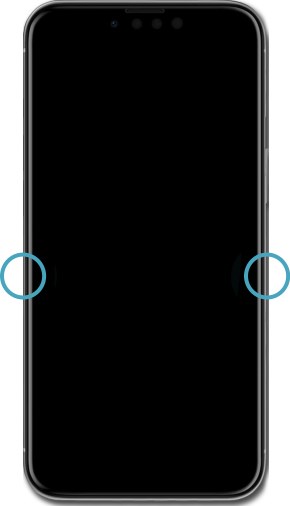
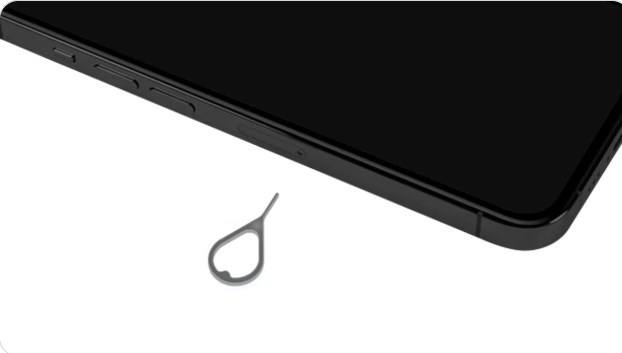

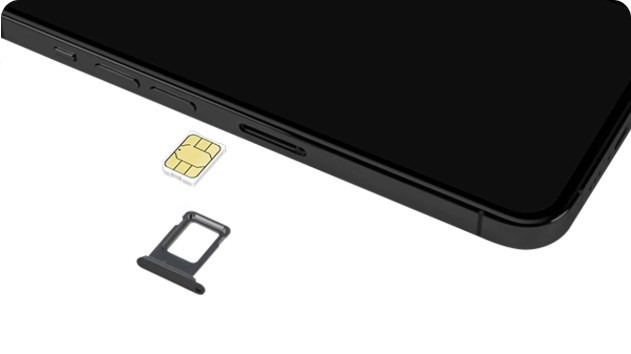
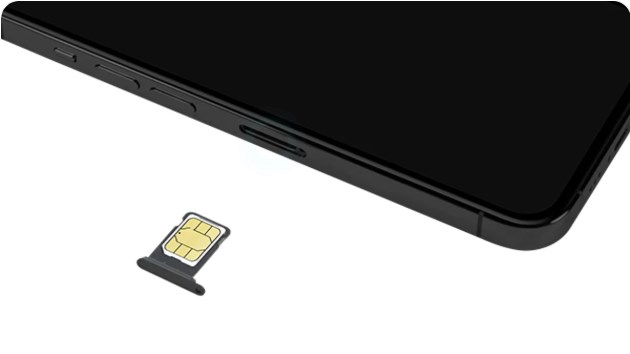
- Locate the SIM card tray on the left or right side of your device Note: For iPhone 12 models and later, the SIM tray will be located on the left side of your device. Whereas for iPhone 11 models and earlier, the SIM tray will be located on the right side of your device.
- Insert either the SIM card ejection tool or a paperclip straight into the pinhole of the SIM card tray and push in until the tray releases. Note: Make sure you’re inserting your tool straight into the pinhole and not at an angle. Inserting your tool at an angle can prevent the SIM tray from ejecting properly.
- Slide the SIM card tray out of its slot.
- Remove the SIM card from the tray.
- Insert the new SIM card from the mailed package you received into the tray with the gold/silver contacts facing up. Note: When inserting, carefully line up the notched edge of the SIM card to the SIM tray’s notch. Correctly aligning this notch will ensure a proper insertion takes place regardless of the iPhone model in use.
- Push the SIM card tray back into the iPhone.
Samsung S10
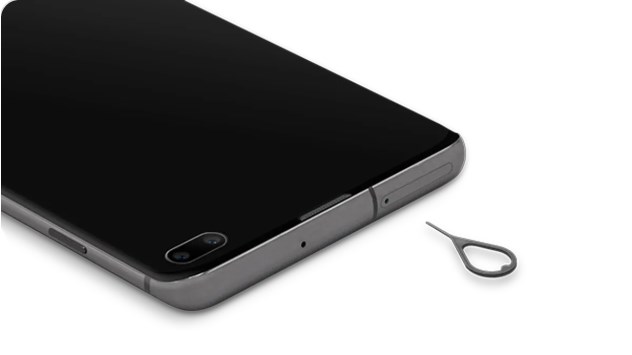
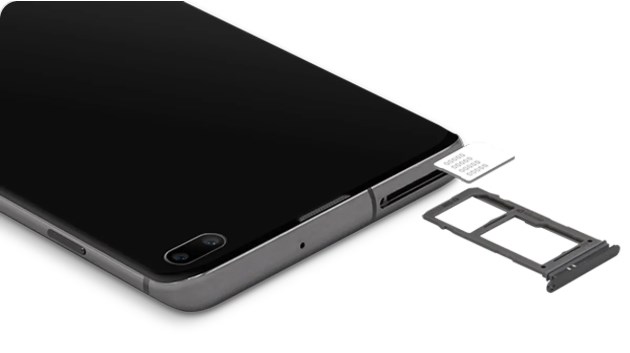

- Locate the combined SIM/microSD card tray on top of your device.
- Insert either the SIM card ejection tool or a paperclip straight into the pinhole of the SIM card tray and push in until the tray releases. Note: Make sure you’re inserting your tool straight into the pinhole and not at an angle. Inserting your tool at an angle can prevent the SIM tray from ejecting properly.
- Slide the combined SIM/microSD card tray out of its slot.
- Remove the SIM card from the tray.
- Insert the new SIM card from the mailed package you received into the tray with the gold/silver contacts facing the back of the phone. Note: When inserting, carefully line up the notched edge of the SIM card to the SIM tray’s notch. Correctly aligning this notch will ensure a proper insertion takes place regardless of the Samsung model in use.
- Push the SIM card tray back into the Samsung until it clicks, making sure it’s secure.
Managing Your Mobile Line in a Domestic Violence Situation
If you or a loved one needs to leave a shared wireless account due to domestic violence or abuse, you may request to do so in person by visiting a FOCUS Broadband location. Our representatives will handle your request in a secure and confidential manner and will only contact you using the preferred methods you provide.
To separate a line from a shared account, you will need to provide us with your ID, basic information about your situation and the phone numbers involved (additional numbers of anyone in your care that you want to take with you).
If you are not authorized to make changes to the account, a court order will be needed directing FOCUS Broadband to release the telephone line from the account.
When you transfer your wireless line(s), you may have the option to keep your monthly wireless plan or subscribe to a new FOCUS Broadband wireless plan. To ensure you subscribe to the monthly wireless plan that best suits your new needs, ask our representative to review your plan options. As a reminder, you may also be required to assume responsibility for outstanding charges, device balances and fulfillment requirements associated with the line or device assigned to the line.
Once your transfer is complete, you will also be free to port your number to another service provider.
Important To Know: You may also qualify for the emergency communications benefit as part of the Federal Lifeline Program. For more information about Lifeline Benefits visit https://www.lifelinesupport.org/.
National Domestic Violence Assistance
Hotline: 1-800-799-SAFE (7233)
Website: www.thehotline.org
FAQ’s
Will I be able to keep my wireless device?
Yes. You will be able to keep any wireless device associated with the line(s) you are transferring. You will be responsible for any remaining device charges or any early cancellation penalties associated with promotions that have been received should you terminate service or transfer to another provider.
Can my device be tracked after I separate my line?
Some devices offer location tracking features. Removing your line from an account does not disable these features. Location tracking can be managed as needed from within the settings of associated apps or services.
*FOCUS Broadband internet subscription required for wireless service.
Hearing Aid Compatibility
Hearing aids do not always function well with wireless handsets. Hearing aids operate by using a microphone to pick up sound waves, converting the sound waves into electrical signals to be amplified. Distortion or amplification of unwanted sound (noise) often occurs. The FCC requires that digital wireless phones be rated based on their compatibility with hearing aids. The standard for compatibility of digital wireless phones with hearing aids is set forth in American National Standard Institute (ANSI) C63.19, hearing aid compatibility standards.
The FCC’s hearing aid compatibility requirements address hearing aids that operate in either of two modes – acoustic coupling (“M” rating) or inductive coupling (“T” rating). These ratings are on a scale from one to four, where four is the most compatible. A phone is considered hearing aid compatible under the FCC requirements if it's rated M3 or higher for acoustic coupling and T3 or higher for inductive coupling. Hearing aids operating in acoustic coupling mode receive through a microphone and then amplify all sounds surrounding the user, including both desired sounds, such as a telephone’s audio signal, and unwanted ambient noise. Hearing aids operating in inductive coupling mode turn off the microphone to avoid amplifying unwanted ambient noise, instead using a telecoil to receive only audio signal-based magnetic fields generated by inductive coupling-capable telephones. The FCC’s “M” and “T” ratings indicate whether a handset can be expected to function well with a hearing aid and are generally marked clearly on the handset packaging. The “M” or “T” rating does not guarantee that the handset will function without distortion or noise, so FOCUS Broadband recommends that you test the handset before purchasing.
Level of Functionality
FOCUS Broadband offers HAC-compatible handsets and devices in a variety of price options. Costs generally correlate with the number of features, but if through experience, FOCUS Broadband finds that a certain handset contains features that work well with hearing aids, such as volume control, it will be labeled accordingly with an “A” level for functionality. FOCUS Broadband’s sales staff is trained to assist all existing and prospective customers looking for a HAC-compliant device/handset. HAC-compatible handsets and devices vary in their inherent “levels of functionality,” but typically at least one (1) HAC-compliant handset/device with features and services typical of its price category can be found that meets each customer’s price range.
Hearing Aid Compliant (HAC) Device Ratings
These handsets have been tested and rated for use with hearing aids for some of the wireless technologies that they use. However, there may be some newer wireless technologies used in these phones that have not been tested yet for use with hearing aids. It is important to try the different features of these phones thoroughly and in different locations, using your hearing aid or cochlear implant, to determine if you hear any interfering noise. Consult FOCUS Broadband or the manufacturer of the handset for information on hearing aid compatibility. If you have questions about return or exchange policies, contact FOCUS Broadband.
Active Phones
Apple Devices
| Handset | HAC Rating | FCC ID |
| Apple iPhone 17 | M3/T4 | BCG-E8947A |
| Apple iPhone Air | M3/T4 | BCG-E8948A |
| Apple iPhone 17 Pro Max | M3/T4 | BCG-E8949A |
| Apple iPhone 16 | M3/T4 | BCG-E8688A |
Samsung Devices
| Handset | HAC Rating | FCC ID |
| Samsung Galaxy S25 | M3/T3 | A3LSMS931B |
| Samsung Galaxy S25+ | M3/T3 | A3LSMS936B |
| Samsung A16 5G | M3/T3 | A3LSMA166U |
| Samsung Galaxy S24+ | M3/T3 | A3LSMS926U |
Other Devices
| Handset | HAC Rating | FCC ID |
| Schok Volt | M3/T4 | 2AM9L-SV67Q |
| Schok Classic Flip | M3/T4 | 2ALZM-SC3218 |
| Kyocera E4811 DURA XV EXTREME+ | M3/T4 | KYOE4810 |
Discontinued Phones
Apple Devices
| Device Model | HAC Rating | FCC ID |
| Apple iPhone 16 Pro Max | M3/T4 | BCG-E8684A |
| Apple iPhone 16 Plus | M3/T4 | BCG-E8692A |
| Apple iPhone 15 | M3/T4 | BCG-E8427A |
| Apple iPhone 15 Plus | M3/T4 | BCG-E8431A |
| Apple iPhone 15 Pro Max | M3/T4 | BCG-E8439A |
| Apple iPhone 14 | M3/T4 | BCG-E3997A |
| Apple iPhone 14 Plus | M3/T4 | BCG-E3997A |
| Apple iPhone 14 Pro Max | M3/T4 | BCG-E4003A |
| Apple iPhone SE | M3/T4 | BCG-E3500A |
| Apple iPhone 13 | M3/T3 | MLAE3LL/A |
| Apple iPhone 13 Pro Max | M3/T4 | MLF23LL/A |
| Apple iPhone 12 Mini | M3/T4 | BCG-E3539A |
| Apple iPhone 12 | M3/T3 | BCG-E2430A |
| Apple iPhone 12 Pro Max | M3/T4 | BCG-E3548A |
| Apple iPhone 12 Pro | M3/T4 | BCG-E3545A |
| Apple iPhone 11 | M3/T4 | BCG-E243OA |
| Apple iPhone 11 Pro | M3/T4 | BCG-E3305A |
| Apple iPhone 11 Pro Max | M3/T4 | BCG-E3306A |
| Apple iPhone XR | M3/T4 | BCG-E3220A |
| Apple iPhone XS Max | M3/T4 | BCG-E3219A |
| Apple iPhone XS | M3/T4 | BCG-E3218A |
| Apple iPhone 8 | M3/T4 | BCG-E3159A |
| Apple iPhone 8+ | M3/T4 | BCG-E33220A |
Samsung Devices
| Device Model | HAC Rating | FCC ID |
| Samsung Galaxy S24 | M3/T3 | A3LSMS921U |
| Samsung Galaxy A54 | M3/T3 | A3LSMA546V |
| Samsung Galaxy 23 | M3/T3 | A3LSMS916U |
| Samsung Galaxy S23+ | M3/T3 | A3LSMS916U |
| Samsung Galaxy S22+ | M3/T3 | SMS906UIDV |
| Samsung A15 5G | M3/T3 | A3LSMA156E |
| Samsung Galaxy A14 | M3/T3 | ZCASMA146U |
| Samsung Galaxy A53 | M3/T3 | A3LSMA536U |
| Samsung Galaxy A32 | M3/T3 | A3LSMA326U |
| Samsung Note20 Ultra 5G | M3/T3 | A3LSMN986U |
| Samsung Galaxy S20 5G | M3/T3 | A3LSMG981U |
| Samsung Galaxy S20+ 5G | M3/T3 | A3LSMG986B |
| Samsung Galaxy S10 | M3/T3 | A3LSMG973U |
| Samsung Galaxy S10+ | M3/T3 | A3LSMG975U |
| Galaxy A10e | M3/T3 | A3LSMA102U |
| Galaxy A01 | M3/T3 | ZCASMA215U |
| Galaxy A21 | M3/T3 | ZCASMA215U |
| Samsung Galaxy S22 | M3/T3 | SMS901UZWV |
| Samsung Galaxy S22 Ultra | M3/T3 | SMS908UZGV |
| Galaxy S21 | M3/T3 | A3LSMG991U |
| Galaxy S21 Ultra | M3/T3 | A3LSMG998U |
| Galaxy S21+ | M3/T3 | A3LSMG996U |
| Samsung Galaxy A52 5G | M3/T3 | A3LSMA526U |
| Samsung Galaxy A12 | M3/T3 | A3LSMA125U |
| Samsung Galaxy Z Flip 3 | M3/T3 | SMF711UZEV |
| Samsung Galaxy S21 | M3/T3 | A3LSMG991U |
| Samsung Galaxy S21+ | M3/T3 | A3LSMG996U |
| Samsung Galaxy S 21 Ultra | M3/T3 | A3LSMG998U |
| Samsung Note20 5G | M3/T3 | A3LSMN981U |
| Samsung Galaxy A20 | M3/T3 | A3LSMA205F |
| Samsung Galaxy A10e | M3/T3 | A3LSMA102U |
| Samsung Galaxy S20 Ultra 5G | M3/T3 | A3LSMG988B |
| Samsung Galaxy S10e | M3/T3 | A3LSMG970U |
| Samsung Note 9 | M3/T3 | A3LSMN960U |
| Samsung Galaxy S9+ | M3/T3 | A3LSMG965U |
| Samsung Galaxy S9 | M3/T3 | A3LSMG960U |
| Samsung J3 | M3/T3 | A3LSMJ320P |
Other Devices
| Device Model | HAC Rating | FCC ID |
| Kyocera E4810 DURA XV EXTREME | M3/T4 | KYOE4810 |
| Kyocera DuraXV LTE E4610 | M3/T4 | V65E4610 |
| Nuu F4L | M4/T4 | 2ADINS2801L |
| Kyocera Cadence | M4/T4 | V65S2720 |
More information can be found at www.fcc.gov/hearing-aid-compatibility-and-volume-control.
Information last updated Tuesday, October 12, 2021.
Wireless FAQs
Can I keep my current phone number?
Yes, in most cases. Our activation process allows you to transfer your existing number from your old provider. To authorize the release of your phone number to FOCUS Broadband, you will need to provide us with your previous account number. Your FOCUS Broadband customer care representative will handle the porting process for you. You should allow up to 24 hours for the porting process to complete. Service with your previous provider will remain available until the porting process has been completed. If you opt for a new number, those provided by FOCUS Broadband will be local.
Will I have a local number?
Yes. FOCUS Broadband uses numbers which are local for most of our customers.
Can I use my current phone?
Cell phones from nearly every manufacturer will work on our network as long as they are CDMA compatible, use a SIM card/eSIM and are unlocked. FOCUS Broadband will NOT activate a device that has been reported as lost or stolen by FOCUS Broadband or any other provider. Your FOCUS Broadband customer care representative will help you determine if your phone can be used.
Can I trade my current phone in for a credit on another phone?
Yes. If you have a device that is in working condition, with no visible damage, we will appraise it in-store and deduct the appraised amount from the price of your new device.
How do I transfer my pictures and contacts to my new phone?
FOCUS Broadband customer care representatives can assist with this. Please let us know that you wish to do so when you activate your new device.
What should I expect to pay on the day I activate my phone?
New accounts will be subject to credit verification. As a result, a service deposit and/or down payment may be required at sign up. Activation fees and any accessory purchases must also be paid at activation. Partial and full financing options may be available for new devices. ONLY month plan and usage charges will be billed.
Do you require a term agreement?
No, term agreements are not required. However, by financing a phone through FOCUS Broadband you agree to pay for the price of your phone (less your down payment) over the course of 12 months. The agreement begins the day your service/device is activated. If you decide to discontinue your service at any time during this one year period, you will be responsible for any remaining balance owed on your device as well as any unbilled usage.
Can I change my calling plan?
Yes. You can change your plan at any time without incurring a penalty. The change will be effective immediately. However, you may be responsible for pro-rated charges from one plan to another when doing so in the middle of your billing cycle.
Can I change my wireless number?
Yes. Please contact our Customer Care group at 888-367-2862 to make this change.
Can I add my wireless service to my existing FOCUS Broadband account?
Yes. For your convenience we can combine your wireless charges with an existing FOCUS Broadband account.
When will my bill be due?
Your wireless service will be added to your current FOCUS Broadband service billing statement. New customers will be assigned a billing cycle at the time of activation. In this case, your first bill will arrive approximately 30 days following your activation. Please note that your first bill may include prorated charges
What happens if I do not pay my FOCUS Broadband wireless bill?
Because your wireless service will be included along with the monthly charges for all other FOCUS Broadband services for which you subscribe, you will be required to pay your entire monthly FOCUS Broadband bill to keep your wireless service active. Failure to pay your FOCUS Broadband bill will result in suspension of your wireless service. If your service is terminated, you will be responsible for any outstanding usage charges, monthly charges and the remaining portion of any financed devices will become due in full.
How many devices can I have on my account?
At this time, the maximum number of devices that are allowed on a FOCUS Unlimited account is five (5). Plans are also available for use with tablets, however, they do require subscription to at least one phone line. If a tablet is used, customer must purchase independently and have added to their account.
What does device insurance plan cover?
FOCUS Broadband offers device insurance options which cover accidental damage (damages due to drops or spills), theft or loss, mechanical failure and manufacturer defects. Certain mechanical failures and manufacturer defects are covered by the manufacturer’s warranty. If your phone cannot be repaired, you can receive a replacement or check/gift card for its cash value (less deductible, which is due at the time of the claim).
How long do I have to enroll in the device insurance plan?
Device protection must be added within the first five (5) days of service.
How do I file an insurance claim?
If you feel that your issue is the result of a mechanical failure or manufacturer’s defect, and if your device is still within the warranty period, please contact our Customer Care group at 888-367-2862 for assistance. To file a claim for a lost or damaged item, go to www.fortegra.com/claims-support and click on "Mobile Devices" to file a claim. You can use their chat feature on their website or call 1-877-775-3274 with your contract purchase receipt readily available.
What types of data use count against my data allowance?
Any data used while your device is connected to the wireless network will use your monthly data allowance. This includes when you access the internet, watch videos, check email, play games and use apps such as Facebook or Maps. Background tasks, such as syncing or location services, may also use data.
How can I tell if the data I am using counts against my data allowance?
Refer to the notification bar on your device to determine when you’re connected to the wireless network. If you see 4G, 5G or LTE, this means you're connected to our network.
How can I best reduce the amount of data counting against my allowance and still access the Internet?
When you're connected to Wi-Fi you won't be charged for any data you use because you aren't using the wireless network. We recommend you connect to Wi-Fi networks you know and trust whenever they're available. This is a great way to manage how much data you use and avoid extra charges. We also recommend adjusting your device settings to perform software updates, app refreshes or backups only when connected to Wi-Fi.
What happens when I exceed my data allowance?
If you are on a data-capped plan, you will continue to receive data and will begin to incur overage charges for the data you use. Overage rates may vary. If you are on an unlimited plan and exceed the data speed subscribed, your data may be throttled. Please contact our Customer Care group at 888-367-2862 for more details.
How can I tell how much data I have used?
You will receive a text message alerting you that you are near your monthly data allowance. You may also obtain this information by contacting our Customer Care group at 888-367-2862.
What types of voice calls count against my plan?
Each of the plans offered by FOCUS Broadband include unlimited voice calling to areas within the US; however, your call may sometimes get picked up and carried by cell sites that are not part of our wireless network. When this happens, you may be responsible for roaming charges.
How can I tell if my call is roaming?
A roaming indicator will appear on your phone.
What is the cost for roaming?
Roaming rates vary by country. For full international rates, contact Customer Care at 888-367-2862.
Can I make international calls?
Your wireless plan has been set to block international calls. To make an international call, you will need to have an International Calling plan added to your account. To do so, please call 888-367-2862. You will need to do this to place an international call when calling from within the U.S. and when calling back to the U.S. from an international country. Rates for international inbound calls may vary, as they are implemented by the carrier in the country in which the call originates. Please allow up to three (3) months for international calling charges to appear on your bill. NOTE: After adding international access to your phone, please be sure to power your phone off and back on before leaving the U.S. to make international calling/roaming work.
What is the rate for international texting?
Rates vary for international texting and may range from $0.25 to $0.50 per text.
Is calling to Canada, Mexico, US Virgin Islands, Puerto Rico or Guam considered an international call?
Yes.
Can I make a call in an area where I can’t receive coverage?
With Wi-Fi calling you can make and receive calls using a Wi-Fi network rather than using a traditional wireless network. This option is included at no additional charge with your existing voice plan and HD voice compatible device. Wi-Fi calling does not go against your data allowance, however, usage charges may apply for calls and texts. To use this feature, you will need to turn Wi-Fi Calling on in device Settings.
Why am I not receiving the full text message?
Text messages are limited to 160 characters.
What is the maximum size of a picture message?
350 KB. Depending on the size and quality of the photo, some photos may not be transmitted.
Can I block a caller?
Yes. You can add a blocking feature to each device on your account which limits types of purchases like ringtones and in-app purchases calls. To do so, please call Customer Care at 888-367-2862.
Can I block charges for third party content?
Yes. You can block calls or texts from an individual. To do so please call Customer Care at 888-367-2862.
What do I do if my phone freezes?
This issue can typically be resolved by powering your phone off, waiting two (2) minutes and then powering the phone on again. If the problem persists, please contact our Customer Care group at 888-367-2862 for assistance.
What do I do if my battery will not stay charged?
Turn the phone off. Remove your battery and put it back in if it is possible to do so. If the battery still does not charge, then you may need a new battery.
Please select the icon below that relates to your need for assistance.
Business Support
Business Class Broadband Support
Business Class Broadband service offers same-day support and features a one-hour guaranteed callback in response to troubles reported via the Priority Response Hotline. Each Business Class Broadband circuit is assigned a personalized verification and PIN number to facilitate expedited response to reported troubles.
Should you have troubles with your Business Class Broadband subscription, please call the Priority Response Hotline at 910-755-2222. The Priority Response Hotline is accessible 24/7/365.
Cybersecurity Support
Please call 910-755-1675 for Cybersecurity support.
User Guides & Instructions
Voicemail for Hosted Systems
Using The Voicemail System
The voicemail system is menu driven. Listen to the voice prompts and then press the keys on your phone to select the appropriate option.
Accessing Voicemail:
The first time you access your voicemail box you will be asked to set up your mailbox, and record your name and a greeting to be played by callers. When you have one or more unheard voice messages waiting, your phone will display a solid red light on the top of your phone.
From Your Phone:
- Press the Messages button or dial *99.
- Enter your voicemail password.
- If you have new messages, the messages will be identified.
- After hearing any new messages, you will be presented with the Voicemail Main Menu. The Main Menu options are listed below.
From Another Phone:
-
From an external phone, dial 910-845-9940.
- When prompted, enter your 10-digit number.
- When prompted, enter your voicemail password + #.
- If you have new messages, the messages will be identified.
- After hearing any new messages, you will be presented with the Voicemail Main Menu. The Main Menu options are listed below.
Voicemail Main Menu:
| Action | Key |
|---|---|
| Play Inbox Messages | 1 |
| Send Messages | 2 |
| Work with Greetings | 3 |
| Mail Box Settings | 4 |
| Access Deleted Messages | 6 |
| Log on as a different user | 7 |
| Help | 0 |
| Exit Voicemail System | * |
Message Playback Options:
While listening to your voicemail messages, the following options are available:
| Action | Before Message | During Message | After Message |
|---|---|---|---|
| Skip Message | Before Message: # (skips header, goes to message body) | During Message: # (skip to next message) | After Message: N/A |
| Reply to Message | Before Message: N/A | During Message: 4 | After Message: 4 |
| Save Message and Go To Next | Before Message: N/A | During Message: 2 | After Message: 2 |
| Delete | Before Message: N/A | During Message: 3 | After Message: 3 |
| Play Inbox Messages | Before Message: 1 | During Message: N/A | After Message: 1 |
| Send Messages | Before Message: N/A | During Message: 5 | After Message: 5 |
| Work with Greetings | Before Message: 3 (from main menu) | During Message: | After Message: |
| Before Message: 4 (from main menu) | During Message: | After Message: | |
| Access Deleted Messages | Before Message: 6 (from main menu) | During Message: N/A | After Message: After playing a deleted message, 2 to save, 3 to permanently erase |
| Log on as a Different User | Before Message: 7 (from main menu) | During Message: | After Message: |
| Help | Before Message: 0 | During Message: 0 | After Message: 0 |
| Return to Main Menu, Exit Voicemail System | Before Message: * (repeatedly, depending on how deep you are in the menu) | During Message: * | After Message: * |
Forwarding A Message:
While listening to messages, you can send a copy of the message to another recipient.
- Enter an extension number or Distribution Group Number. Repeat this step until you’ve entered all the desired destinations.
- Press # when finished entering destinations.
- You will be prompted to record an introduction.
- After the tone, record your introductory message and press # when finished.
- Press # to send or press 1 for delivery options, followed by # to send. Delivery options include the following:
| Action | Before Message |
|---|---|
| Review the Message | 1 |
| Mark message as urgent | 2 |
| Mark message as private | 3 |
| Re-record your message | 4 |
| Request a delivery report | 5 |
| Request a read report | 6 |
| Add or remove recipients | 7 |
| Schedule the message to be delivered in the future | 9 |
| Send the message as is | # |
| Exit or cancel | * |
Replying To A Message-Dialing The Originator:
- While listening to a message, you can call the person back by pressing 4 and selecting option 1. This capability will not work if the voicemail system was not able to identify the Caller ID information when the original voicemail was received or if your phone is configured with call restrictions which prevent you from calling the originator’s number.
Changing Your Voicemail Password:
- Access your voicemail box.
- From the Main Menu, press 4 to change your settings.
- Press 3 for security options.
- Press 1 to change the PIN.
Recording Your Personal Greeting:
- Access your voicemail box.
- From the Main Menu, press 3.
- To set up a personal greeting press 1.
- To setup a system generated greeting or to change the recording of your name, press 3.
- To change the greeting that callers hear when you’re busy, press 5.
- If you don’t record a personal greeting, a generic greeting will be played.
Mass Announcement Login
Please login at https://announcement.atmc.net to view the announcements.
Mass Announcement
Battery Backup
Instructions to Battery Backup Replacement
Telephone service provided via the cable system using a cable modem or via the fiber optic network using an Optical Network Terminal (ONT) rely on electricity to work properly. These units are equipped with a battery to provide backup power for a limited time should there be a power outage. To ensure continued access to telephone service in the event of a power outage, we recommend that you check your battery on a regular basis. Instructions for testing and replacing backup batteries may be found by visiting one of the links provided below.
Cable modem customers may purchase a backup battery from any FOCUS Broadband retail location and perform a self-install. Backup batteries for Fiber ONTs must be replaced by an FOCUS Broadband technician. To schedule a professional installation for your backup battery or for additional information about testing and replacing your backup battery, please contact us at 910-754-4311.
Hosted and IP-PBX User Guides
Toll Fraud
Important Notification for Businesses Using Multi-line Telephone Systems
FOCUS Broadband has had reports of recent fraudulent activities in our area that could affect your business. If you use a multi-line telephone system or PBX with voicemail you could be susceptible to long distance call hacking that could cause you to incur thousands of dollars of unauthorized long distance charges. Please read carefully for more information.
It is imperative that you protect yourself by ensuring that your employees change their default passwords to unique number combinations that may not be easily guessed. As a customer with a multi-line telephone and voicemail system, you are responsible for the protection of your equipment and any toll charges made on your account.
If you have general questions about protecting your business communications equipment, we recommend that you contact your business communications equipment provider. If your business communication equipment was installed by FOCUS Broadband, call 755-1675.
If you suspect you have been a target of criminal activity, it is your responsibility to contact the local authorities immediately. FOCUS Broadband will cooperate in every way with any criminal investigation.
For more information on how to protect your business, check out the tips below:
General practices for protecting your multi-line telephone system:
- Require your employees to change the default password on their voice mailbox as soon as it is assigned to them. THIS IS EXTREMELY IMPORTANT.
- Program your voicemail system to require passwords with a minimum of 6 characters (8 character passwords are preferred). The more complex your password, the more difficult it will be to hack.
- Train employees to use passwords that are not easily deciphered. Examples of low security passwords are: the telephone number, the extension number, or simple number combinations such as 1234, 1111, or any repeated number.
- When assigning a telephone to a new employee, never make the temporary password the employee’s extension number. Make it unique. This makes it more difficult for hackers to guess.
- Program your voicemail system to force users to change their password at least every 90 days.
- Certain features allow long distance calls to be made through a voicemail system (specifically the end user’s mailbox) from an offsite location. Determine whether you need this feature activated. If you don’t, have it disabled. This disables a hacker’s ability to make outbound calls by infiltrating unguarded voice mailboxes.
- Never have unassigned voice mailboxes on the system. When someone leaves your employment, remove old messages and delete their voice mailbox immediately.
- Restrict the Voicemail Remote Notification option to only contact approved pagers or mobile phones.
- Consider placing restrictions on international dialing or have dialing filters which allow or restrict calls to specific countries.
The above security measures are general in nature and may not protect every multi-line telephone system. We encourage you to contact your equipment support provider to discuss the unique aspects and vulnerabilities of your specific multi-line telephone system in greater detail as soon as possible.
Each business should assign a system administrator to manage your multi-line telephone system and assist employees with basic phone system tasks and maintenance duties, such as: resetting voicemail passwords, adding and deleting voice mailboxes, and enabling and disabling telephone features. You are responsible for all calls made from your multi-line telephone system.
What should you look for to determine if you are a victim of toll fraud?
Review your monthly telephone statement for abnormal calling patterns such as: calls to unusual locations, high call volume, long call durations, international calls and calls to 809 or 900 area codes and high traffic after business hours.
Please select the icon below that relates to your need for assistance.
Help with Billing (Ayuda con la facturación)
Understanding Your Bill
Click Here for a video walkthrough of your bill.
Your FOCUS Broadband bill makes it easy to read and understand the charges associated with your account. Click on a magnifying glass to get a closer look at the features of your bill.

X

Bill Date, Past Due Date, and Past Due Amount tell you the date of the bill, when your bill will be past due and if you owe a past due balance from previous bill statements. Your Account Number will be used to help reference your account if you call into our Customer Care Center. The new Customer Code is a unique number that is printed on every bill. This number provides another method for securely identifying you, the customer.
X

The Account Summary section is a snapshot of the charges that are due on your account for the current statement cycle. Your Previous Balance, Previous Payments, Balance Forward and Current Charges are all listed here. Your Current Charges are further broken down into sub charges of Services and Equipment, Other Charges and Credits, Taxes and Fees, and Calling Charges. These sub charges make up the total Current Charges. All of these charges together add up to your Total Amount Due, shown at the bottom.
X

The Customer Communication section is a dedicated area where you will find important messages and offers from FOCUS Broadband.
X

Our contact numbers are conveniently located in the middle of the front page of your bill. Here you will find our Toll Free Customer Care number, and our Repair number.
X

New Easy Ways to Pay section lists out all the various options available to pay your bill. Pay your bill through Mail, In Person, Phone, Online, or set up a monthly draft through Auto Pay.
X

This section of the bill shows your bill payment method. This message will change depending on how you pay your bill each period. Different messages exist for customers who mail in their payment, or if a customer has a draft payment from a credit or debit card or checking account.
X

This is your payment stub. This section of the bill is what you will mail back to us if you are mailing in your payment. Bill Date, Account Number, Past Due Date, and Amount Due are all shown on the stub, along with an area to enter the amount you are paying towards your bill. If you choose to pay your bill though other methods, such as online, or through Auto Pay, this area will be blank.

X

Detailed Payment Activity section is capable of showing up to the last ten payments, credits, or fees applied to your account during the statement period.
X

Condensed legal and regulatory section gives you vital information on Disconnection and Restoral of Service, Late Payment Fee, Rates, Terms and Conditions, Unauthorized Charges, Closed Captioning, Cable TV Franchise Authority Information, and how to make an Address Change.
X

Quickly and easily find out the address and hours of operation for all of our convenient locations.

X

New Bundle Services section shows you which bundle/s (if any) you subscribed to during the statement period. The service icons at the top represent the services that are included in your current bundle.
X

Calling Detail/Charges section shows any long distance charges you incurred during your statement period. Your long distance provider, along with your calling plan summary and any toll charges are included here as well. If you subscribe to a Nationwide Long Distance plan, this section will not be on your bill.
X

Each service section is represented by its service icon and details the charges for Monthly Service and Equipment as well as Taxes and Fees. Each section’s charges are totaled at the end so you know exactly what you are paying for each service.
X

Bundled services are easier to identify as all bundled items are clearly marked as such in the description. We replaced using numbers “(3)” with – “BUNDLED”.
X

Taxes and Fees are now shown separate from other monthly charges under each service section.
X

This section has been added to more easily identify the account holder and location of the services that are shown on the bill.
X

Other Charges and Credits section is clearly identified. In this section you will see all of your one-time charges and credits as well as any prorated charges or credits you may have incurred during the statement period.
Billing FAQs (Preguntas frecuentes sobre facturación)
Haz clic aquí para ver las preguntas frecuentes sobre facturación en español
¿Qué significan todos estos cargos en mi factura?
Tu factura reflejará los servicios que has solicitado, así como los cargos requeridos por entidades gubernamentales locales, estatales y federales.
Se suponía que me iban a dar un crédito en la factura del mes pasado, pero me están cobrando de nuevo este mes. ¿Por qué?
Cuando se determina que tienes derecho a un crédito, tienes la opción de pagar el monto completo del estado de cuenta anterior o deducir el crédito de tu pago. Si decides deducir el crédito del pago de este mes, el monto del crédito se mostrará en tu próxima declaración como "saldo anterior". El crédito real aparecerá en la sección 'Otros cargos y créditos' de la misma factura, y se deducirá de los cargos mensuales actuales para compensar el 'saldo anterior'. La declaración que refleje el monto del crédito debería ser correcta y el "monto total debido" deberá ser pagado en su totalidad.
¿Cómo presento una disputa si aparece un cargo no autorizado en mi factura?
Si ves un cargo en tu factura que no autorizaste, por favor contáctanos inmediatamente. Todos los cargos que aparecen en tu factura se consideran válidos a menos que presentes una disputa con nosotros. Tienes 90 días a partir de la fecha de la factura para disputar cualquier cargo(s). Si no presentas una disputa, aceptas pagar todos los cargos de tu factura, de acuerdo con los términos de nuestras tarifas y tu membresía con FOCUS Broadband. Puedes contactarnos de varias formas para presentar una disputa. Nos puedes llamar por teléfono al (910) 754-4311 o al 888-367-2862. Sin embargo, para preservar todos tus derechos de resolución de disputas, debes contactarnos por correo electrónico a contact@focusbroadband.com o escribirnos a Servicio al Cliente de FOCUS Broadband, P.O. Box 3198, Shallotte, NC 28459.
¿Cobra FOCUS Broadband tarifas por pagos atrasados?
FOCUS Broadband puede aplicar una tarifa por pago tardío a cualquier cuenta que no se haya pagado en su totalidad para la fecha de vencimiento del pago. Si tienes preguntas sobre esta tarifa, por favor contáctanos al (910) 754-4311 o al 888-367-2862 (llamada gratuita).
¿Qué son los cargos por mes parcial/facturación prorrateada?
Los cargos por mes parcial o prorrateados se encuentran en la sección 'Otros cargos y créditos' de tu estado de cuenta. Estos cargos pueden aparecer cuando inicias servicio, añades servicio, cambias planes de servicio o añades funciones a tu cuenta. Estos cargos reflejan la parte del mes en la cual se utilizaron los servicios. Vea más información a continuación.
¿Cómo se me factura cuando instalo servicios o añado servicios y funciones?
- El prorrateo comienza el primer día de activación del servicio o función solicitados y termina el día de tu próximo ciclo de facturación.
- Los servicios y funciones se facturan con un mes de anticipación.
- Se aplicarán cargos por uso cuando corresponda.
- Todas las facturas posteriores reflejarán tus cargos mensuales por servicios y funciones.
¿Cómo se me factura cuando desconecto servicios y funciones?
- Recibirás un crédito por los servicios y funciones desde el día de la desconexión hasta el último día de tu último ciclo de facturación.
¿Cómo obtengo información sobre un número de teléfono que llamé?
Ve a nuestro Directorio telefónico en línea para acceder a varios sitios de búsqueda inversa que te permiten buscar información por número de teléfono.
Cargos por llamadas de larga distancia
Todos tus cargos por llamadas de larga distancia se listarán en la sección Detalle de Llamadas/Cargos de tu factura.
What do all these charges on my bill mean?
Your bill will reflect the services you have requested as well as charges mandated by local government, state and federal agencies.
I was supposed to be given a credit on last month's bill, but I am being charged again this month. Why?
When it has been determined that you are due a credit, you have the option to pay the previous statement amount in it's entirety or deduct the credit from your payment. If you choose to deduct the credit from this month's payment, the credit amount will be shown on your next statement as a "balance forward". The actual credit will appear in the 'Other Charges and Credits' section of the same bill, and it will be deducted from the current monthly charges to offset the 'balance forward amount'. The statement that reflects the credit amount should be correct and the total "amount due" should be paid in full.
How do I file a dispute if an unauthorized charge appears on my bill?
If you see a charge on your bill that you did not authorize, please contact us immediately. All charges appearing on your bill are considered valid unless you file a dispute with us. You have 90 days from the date of the bill to dispute any charge(s). If you do not file a dispute, you agree to pay all charges on your bill, according to the terms of our tariff(s) and your membership with FOCUS Broadband. You may contact us in a number of ways to file a dispute. We can be reached by phone at (910) 754-4311 or 888-367-2862. However, to preserve all your rights to dispute resolution, you must contact us via email at contact@focusbroadband.com or write to us at FOCUS Broadband Customer Service, P.O. Box 3198, Shallotte, NC 28459.
Does FOCUS Broadband charge any late fees?
FOCUS Broadband may assess a late payment fee on any account that has not been paid in full by the payment due date. If you have questions regarding this fee, please contact FOCUS Broadband at (910) 754-4311 or 888-367-2862 (toll-free).
What are partial month charges/prorated billing?
Partial month charges, or prorated charges are located under the 'Other Charges & Credits' section of your billing statement. These charges may appear whenever you initiate service, add service, change service plans or add features to your account. These charges reflect the portion of the month in which the services were used. Read below to learn more.
How am I billed when I install service or add services and features?
- Prorating begins on the first day of activation of your requested service or feature, & ends on the day of your next billing cycle.
- Services & features are billed one month in advance.
- Usage charges will apply when applicable.
- All subsequent bills will reflect your monthly service and feature charges.
How am I billed when I disconnect services and features?
- You will receive a credit for services and features from the day of disconnection through the last day of your last billing cycle.
How do I get information on a telephone number I called?
Go to our Online Phonebook to access a variety of reverse lookup sites that allow you to search for information by phone number.
Toll Charges
All of your toll charges for long distance calls will be listed in the Calling Detail/Charges section of your bill.
Payment Options & Policies (Opciones y políticas de pago)
Haz clic aquí para conocer las opciones y políticas de pago en español
Opciones y políticas de pago de facturas
Pago de facturas
FOCUS Broadband tiene cuatro (4) ciclos de facturación cada mes. El pago vence aproximadamente 20 días después de la fecha del ciclo de facturación. Consulte su estado de cuenta para conocer la fecha exacta de vencimiento del pago. Si su factura se paga mediante débito bancario mensual o pago automático con tarjeta de crédito, consulte la primera página de su factura para conocer la fecha del débito.
Cuentas impagas:
El no pago de cualquier parte de su factura de FOCUS Broadband puede resultar en la interrupción o desconexión de todos los servicios. Usted es responsable del pago de todos los servicios prestados por FOCUS Broadband y facturados a su cuenta. Es su responsabilidad enviar el pago de manera oportuna para asegurar que FOCUS Broadband lo reciba en o antes de la fecha de vencimiento. Si su cuenta no está pagada en la fecha de vencimiento, es posible que reciba una llamada de nuestro sistema automatizado de mensajería o de un representante de FOCUS Broadband recordándole que pague su factura de inmediato para evitar la desconexión de todos los servicios. Si sabe que su pago será retrasado, llame a nuestro departamento de Servicios Financieros al 910-755-1645 para discutir arreglos de pago disponibles. FOCUS Broadband puede, a su discreción, remitir su cuenta impaga a una agencia de cobro de terceros, lo que puede afectar negativamente su historial o puntaje crediticios.
Formas de pagar su factura
En línea en Mi Cuenta:
Visite Mi Cuenta para pagar con MasterCard, Visa, Discover, débito bancario o Cheque electrónico. El acceso a Mi Cuenta requiere un nombre de usuario y contraseña. Llame al 910-754-4311 para inscribirse.
Crédito/Débito Automático:
Configure pagos mensuales recurrentes con MasterCard, Visa o Discover en Mi Cuenta o llamando a Servicios Financieros al 910-755-1645.
Débito Bancario Automático:
Configure pagos mensuales recurrentes por débito en su cuenta corriente o de ahorros a través de Mi Cuenta, llamando a Servicios Financieros de FOCUS Broadband al 910-755-1645 o descargando y completando el formulario de Acuerdo de Autorización para Pagos Preestablecidos con la información correspondiente. Envíelo a nuestra oficina comercial (FOCUS Broadband Financial Services PO Box 3198, Shallotte, NC, 28459) junto con un cheque anulado. Después de que esta información sea enviada y aprobada por su banco (aproximadamente 30 días), se realizará el débito de su factura del mes siguiente. En la parte frontal de su estado de cuenta de la factura encontrará una declaración de confirmación de débito que incluye la fecha en que se realizará el cargo a su cuenta.
Por teléfono:
Llame al 910-754-4311 o al 888-367-2862 para realizar un pago utilizando el sistema de pago automatizado de 24 horas de FOCUS Broadband. Utilice su MasterCard, Visa, Discover o Cheque electrónico para pagar el saldo total de su estado de cuenta, el monto vencido u otro monto. No hay tarifa por conveniencia y se proporcionan instrucciones en inglés y español.
Por correo:
Haga su cheque pagadero a FOCUS Broadband y envíelo a: FOCUS Broadband Financial Services, PO Box 3198, Shallotte, NC, 28459
En persona:
Shallotte
Sede de FOCUS Broadband
640 Whiteville Road
Lun-Vie, 8am-6pm
Sáb, 9am-5pm
(Buzón de noche)
Sunset Beach
The Village at Sunset Beach
1780-9 Chandlers Lane
Lun-Vie, 8am-5pm
(Buzón de noche)
Leland
Brunswick Forest
1201 Dickinson Drive
Lun-Vie, 8am-5pm
Whiteville
Detrás de Brunswick Electric
2230 New Britton Highway
Lun-Vie, 8am-5pm
Burgaw
Frente a Four County Electric
1855 NC Hwy 53 W
Lun-Vie, 8am-5pm
Southport
Junto a Food Lion
4891 Long Beach Rd., Suite 2
Lun-Vie, 8am–5pm
Billing Payment Options & Policies
Payment Of Bills
FOCUS Broadband has four (4) billing cycles each month. Payment is due approximately 20 days after the bill cycle date. Refer to your billing statement for exact payment due date. If your bill is being paid by monthly bank draft or automatic credit card payment, refer to the front page of your bill for the date of draft or draw.
Unpaid Accounts:
Nonpayment of any portion of your FOCUS Broadband bill may result in interruption or disconnection of any and all services. You are liable for payment for all services rendered by FOCUS Broadband and billed to your account. It is your responsibility to mail or make payment in a timely manner to ensure receipt by FOCUS Broadband on or prior to the due date. If your account is unpaid on the due date, you may receive a call from our automated messaging system or an FOCUS Broadband representative reminding you to pay your bill immediately to avoid disconnection of any and all services. If you know that your payment will be late, call our Financial Services department at 910-755-1645 to discuss available payment arrangements. FOCUS Broadband may, at its discretion, submit your unpaid account to a third-party collection agency, which may result in a negative impact on your credit history or credit score.
Ways to Pay Your Bill
Online at My Account:
Visit My Account to pay by MasterCard, Visa, Discover, bank draft, or electronic Check. Access to My Account requires a username and password. Call 910-754-4311 to sign up.
Automatic Credit/Debit:
Set-up recurring monthly payments by MasterCard, Visa, or Discover at My Account or by calling Financial Services at 910-755-1645.
Automatic Bank Draft:
Recurring monthly payments by draft on your checking or savings account can be set up through My Account, calling FOCUS Broadband Financial Services at 910-755-1645 or downloading and completing the Authorization Agreement for Prearranged Payments form with the appropriate information. Send it to our business office (FOCUS Broadband Financial Services PO Box 3198, Shallotte, NC, 28459) along with a voided check. After this information has been submitted to and approved by your bank (approximately 30 days) your following month's bill will be drafted. On the front of your bill statement you will find a draft confirmation statement that includes the date that your account will be drafted.
By Phone:
Call 910-754-4311 or 888-367-2862 to make a payment using FOCUS Broadband's 24-Hour Automated Payment system. Using your MasterCard, Visa, Discover or electronic Check, pay your total statement balance, past due amount, or other amount. No convenience fee, and instructions are provided in English and Spanish.
By Mail:
Make your check payable to FOCUS Broadband and send it to: FOCUS Broadband Financial Services, PO Box 3198, Shallotte, NC, 28459
In Person:
Shallotte
FOCUS Broadband Headquarters
640 Whiteville Road
Mon-Fri, 8am-6pm
Sat, 9am-5pm
(Night Drop Box)
Sunset Beach
The Village at Sunset Beach
1780-9 Chandlers Lane
Mon-Fri, 8am-5pm
(Night Drop Box)
Leland
Brunswick Forest
1201 Dickinson Drive
Mon-Fri, 8am-5pm
Whiteville
Behind Brunswick Electric
2230 New Britton Highway
Mon-Fri, 8am-5pm
Burgaw
Across from Four County Electric
1855 NC Hwy 53 W
Mon-Fri, 8:00am-5pm
Southport
Next to Food Lion
4891 Long Beach Rd. Suite 2
Mon-Fri, 8:00am-5pm
ReConnect Services (Reconectar servicios)
Haz clic aquí para reconectar los servicios en español
Reconexión después de una desconexión por falta de pago (DNP)
En línea en Mi Cuenta:
Acceda a Mi Cuenta y realice un pago en línea que iguale o supere el monto adeudado. Haga clic en el botón "Sí" para reconectar los servicios. Los servicios en línea de Mi Cuenta requieren un nombre de usuario y contraseña. Pague con Mastercard, Visa, Discover o Cheque electrónico. Regístrese llamando al 910-754-4311.
Por teléfono:
Llame al sistema de Pagos Automatizados de 24 horas de FOCUS Broadband al 910-754-4311 o al 1-888-367-2862 y realice un pago que iguale o supere el monto adeudado. Siga las indicaciones para reconectar los servicios. Se agregará un cargo de reconexión de $5 a su próximo estado de cuenta. No hay tarifa de conveniencia, y las instrucciones se proporcionan en inglés y español.
En persona:
Visite una de nuestras ubicaciones para realizar el pago con Mastercard, Visa, Discover o Cheque y solicite la reconexión.
Cargo por Reconexión de Servicio:
FOCUS Broadband cobra una tarifa de $5 por reconectar el servicio.
Reconexión después de la desconexión por Vacaciones
El servicio de desconexión por Vacaciones está destinado como una opción temporal para ahorrar dinero para los clientes que desean suspender sus servicios durante un período en el cual no se utilizarán diariamente. La suspensión temporal de servicios a través de la opción de Desconexión por Vacaciones está permitida hasta un máximo de 4 veces por año calendario y por un total de no más de 180 días por año calendario. Usted conserva su número de teléfono y cuando esté listo, todos los servicios se reconectarán el mismo día que realice la solicitud. No hay cargo por desconexión/reconexión al usar el sitio de administración de cuentas, Mi Cuenta. Para más información o para inscribirse en Mi Cuenta, llame al Servicio al Cliente de FOCUS Broadband al 910-754-4311. Nota: Las cuentas suspendidas por más de 180 días resultarán en que todos los servicios en su cuenta de FOCUS Broadband vuelvan a estado activo donde se facturará a tarifas regulares.
En línea en Mi Cuenta:
Vaya a Mi Cuenta y siga las indicaciones para reconectar los servicios. Los servicios en línea de Mi Cuenta requieren un nombre de usuario y contraseña. Para registrarse, llame al Servicio al Cliente de Mi Cuenta al 910-754-4311, de lunes a viernes, de 8am a 6pm. No hay cargo por reconectar después de la desconexión por Vacaciones en línea en Mi Cuenta.
Por teléfono:
Llame al Servicio al Cliente al 910-754-4311 entre las 8:00 am y las 6:00 pm, de lunes a viernes, para solicitar la reconexión. Se agregará un cargo de reconexión de $20 a su próximo estado de cuenta.
En persona:
Visite una de nuestras ubicaciones para solicitar la reconexión. Se agregará un cargo de reconexión de $20 a su próximo estado de cuenta.
Shallotte
Sede de FOCUS Broadband
640 Whiteville Road
Lun-Vie, 8am-6pm
Sáb, 9am-5pm
(Buzón de noche)
Sunset Beach
The Village at Sunset Beach
1780-9 Chandlers Lane
Lun-Vie, 8am-5pm
(Buzón de noche)
Leland
Brunswick Forest
1201 Dickinson Drive
Lun-Vie, 8am-6pm
Sáb, 9am-5pm
Whiteville
Detrás de Brunswick Electric
2230 New Britton Highway
Lun-Vie, 8am-5pm
Burgaw
Frente a Four County Electric
1855 NC Hwy 53 W
Lun-Vie, 8am-5pm
Southport
Junto a Food Lion
4891 Long Beach Rd., Suite 2
Lun-Vie, 8am–5pm
Reconnect after DNP (Disconnect for Non-Payment)
Online at My Account
Go to My Account and make an online payment that matches or is greater than your past due amount. Click the “Yes” button to reconnect services. My Account online services require a username and password. Pay by Mastercard, Visa, Discover, or electronic Check. Sign up by calling 910-754-4311.
By Phone
Call FOCUS Broadband's 24-Hour Automated Payment system at 910-754-4311 or 1-888-367-2862 and make a payment that matches or is greater than your past due amount. Follow the prompts to reconnect services. One $5 reconnection charge will be added to your next bill statement. No convenience fee, and instructions are provided in English and Spanish.
In Person
Visit one of our locations to make your payment by Mastercard, Visa, Discover, or Check and request reconnect.
Service Reconnection Charge
FOCUS Broadband charges a $5 fee to reconnect service.
Reconnect after Vacation Disconnect
Vacation Disconnect service is intended as a temporary, money-saving option for customers who wish to suspend their services during a time period in which the services will not receive daily use. Temporary suspension of services through the Vacation Disconnect option is permitted no more than 4 times per calendar year and for a total of no more than 180 days per calendar year. You retain your telephone number and when you are ready, all services are reconnected the same day as you make the request. There is no disconnect/reconnect charge when you use the account management site, My Account. For more information or to enroll in My Account, call FOCUS Broadband Customer Service at 910-754-4311. Note: Accounts suspended more than 180 days will result in all services on your FOCUS Broadband account being returned to active status where billing will continue at regular rates.
Online at My Account
Go to My Account and follow the prompts to reconnect services. My Account online services require a username and password. To register, call My Account Customer Service at 910-754-4311, Monday-Friday, 8am-6pm. There is no charge to reconnect after Vacation Disconnect online at My Account.
By Phone
Call Customer Services at 910-754-4311 between the hours of 8:00am-6:00pm, Monday-Friday to request reconnect. One $20 reconnection charge will be added to your next bill statement.
In Person
Visit one of our locations to request reconnect. One $20 reconnection charge will be added to your next bill statement.
Shallotte
FOCUS Broadband Headquarters
640 Whiteville Road
Mon-Fri, 8am-6pm
Sat, 9am-5pm
(Night Drop Box)
Sunset Beach
The Village at Sunset Beach
1780-9 Chandlers Lane
Mon-Fri, 8am-5pm
(Night Drop Box)
Leland
Brunswick Forest
1201 Dickinson Drive
Mon-Fri, 8am-5pm
Whiteville
Behind Brunswick Electric
2230 New Britton Highway
Mon-Fri, 8am-5pm
Burgaw
Across from Four County Electric
1855 NC Hwy 53 W
Mon-Fri, 8:00am-5pm
Southport
Next to Food Lion
4891 Long Beach Rd. Suite 2
Mon-Fri, 8:00am-5pm
Taxes and Fees
Federal and State Fees, Taxes, Surcharges
Federal Subscriber Line Charge (SLC)
A flat monthly charge, established by the Federal Communications Commission (FCC), assessed directly to customers to help local telephone companies recover some of their costs in constructing and maintaining the local network. The SLC is part of the FCC's campaign to promote competition in the U.S. telecom industry and reflects its intent to make end-user customers more directly responsible for these costs.
Federal Access Recovery Charge (ARC)
The ARC is a charge that was adopted by the FCC as a part of its reforms to intercarrier compensation. The ARC may be billed as a separate charge or billed in combination with the SLC. The FCC sets the rates for the ARC each year.
Federal Universal Service Charge (FUSC)
The federal government established national programs to support universal telephone service. The federal Universal Service Fund assists with the costs of providing "affordable" services to low-income individuals and to residents in rural, high-cost areas. In addition, Congress has expanded the program to help schools, libraries and rural health care providers obtain advanced services, such as Internet access. All providers of telecommunications services contribute to the support of these programs. The amount of monthly FUSC on your bill depends on the services you order and the number of telephone lines you have.
Federal Excise Tax
A federal tax that applies to local telephone service billed separately from long distance service. See I.R.S. Publication 510 at www.irs.gov for more details.
NC Telecommunications Tax
North Carolina Sales tax imposed on telecommunications services. NC G.S. 105-164
E911 Charge
A state/local government fee used to fund emergency 911 services, such as fire and rescue.
Telecommunications Relay Service Surcharge
A state charge used to fund relay centers and special equipment that assist hearing- and speech-impaired persons to communicate over the national telecom network. NC G.S. 62-157
Lifeline Discount (Descuento de Lifeline)
Haz clic aquí para obtener el descuento Lifeline en español
Lifeline es un beneficio federal que reduce el costo mensual del servicio telefónico o de Internet para clientes elegibles.
Si eres un consumidor de bajos ingresos y necesitas ayuda para pagar el servicio telefónico o de Internet de banda ancha, es posible que seas elegible para participar en el programa de beneficios Lifeline del gobierno.
Lifeline reduce lo que pagas por servicio residencial de línea telefónica o servicio residencial de Internet de banda ancha por mes. Aquellos elegibles para Lifeline pueden aplicar su beneficio a cualquier servicio de voz que ofrezca FOCUS Broadband, ya sea independiente o agrupado con otros servicios. Puedes calificar para recibir Lifeline si el ingreso de tu hogar está en o por debajo del 135% de las pautas federales de pobreza o si recibes alguno de los siguientes beneficios: Asistencia Federal de Vivienda Pública (FPHA), Medicaid, Programa de Asistencia Nutricional Suplementaria (SNAP), Ingreso de Seguridad Suplementario (SSI), Programas de Pensión para Veteranos y Beneficios para Sobrevivientes, o ciertos programas tribales.
Si calificas para Lifeline, serás elegible para recibir un beneficio mensual de hasta $9.25 hacia el servicio básico residencial de línea telefónica el servicio residencial de Internet de banda ancha.
Para verificar si usted es elegible para inscribirse en el programa, complete el Formulario del Verificador Nacional disponible en el sitio web oficial de Lifeline de la Compañía Administradora del Servicio Universal (USAC). Si es aprobado para recibir los beneficios de Lifeline, necesitará su información de verificación al momento de solicitar el servicio. Lleve una copia impresa de su formulario de verificación en persona o tenga los detalles de su solicitud disponibles al comunicarse con el servicio al cliente de FOCUS Broadband al 888-367-2862.
La asistencia de Lifeline está limitada a un beneficio por hogar y disponible en un solo servicio por hogar, ya sea inalámbrico, de línea fija o de banda ancha. Lifeline no es transferible entre individuos. Si actualmente estás recibiendo asistencia de Lifeline a través de otro proveedor, puedes transferir tu beneficio a tu servicio residencial de banda ancha o teléfono de FOCUS Broadband. Para iniciar la transferencia de tu beneficio de Lifeline a tu servicio residencial de banda ancha o teléfono de FOCUS Broadband, comunícate con el servicio al cliente de FOCUS Broadband al 888-367-2862.
Puede que Lifeline no esté disponible en todas las áreas.
Lifeline is a federal benefit that lowers the monthly cost of phone or Internet service for eligible customers.
If you are a low-income consumer and need help paying for phone service or broadband internet service, you may be eligible to participate in the government Lifeline benefit program.
Lifeline reduces what you pay for residential landline telephone service or residential broadband internet service per month. Those eligible for Lifeline can apply their benefit to any voice service or residential broadband service FOCUS Broadband offers whether standalone or bundled with other services. You may qualify to receive Lifeline if your household income is at or below 135% of the Federal poverty guidelines or you receive any of the following benefits: Federal Public Housing Assistance (FPHA), Medicaid, Supplemental Nutrition Assistance Program (SNAP), Supplemental Security Income (SSI) Veterans Pension and Survivors Benefit Programs, or certain Tribal programs.
If you qualify for Lifeline, you will be eligible to receive a monthly benefit of up to $9.25 per month towards basic residential landline service or residential broadband internet service.
To see if you are eligible for program enrollment, complete the National Verifier Form available at the Universal Service Administrative Company’s (USAC) official Lifeline website. If you are approved to receive Lifeline benefits, you will need your verification information when applying for service. Bring a printed copy of your verification form in person, or have your application details available when contacting FOCUS Broadband customer care at 888-367-2862.
Lifeline assistance is limited to one benefit per household and available on one service only per household, whether wireless, landline or broadband. Lifeline is non-transferable between individuals. If you are currently receiving Lifeline assistance through another provider you are permitted to transfer your benefit to your FOCUS Broadband residential broadband or residential telephone service. To initiate a transfer of your Lifeline benefit to your FOCUS Broadband residential broadband or telephone service, please contact FOCUS Broadband customer care at 888-367-2862.
May not be available in all areas.
Help with Online Account Management (My Account) (Ayuda con la Gestión de Cuenta en Línea (Mi cuenta))
Accessing Your Account (Acceder a su Cuenta)
Haz clic aquí para acceder a su cuenta
Administre fácilmente su cuenta en línea en Mi Cuenta. Se requiere un nombre de usuario y contraseña. Para registrarse, llame al Servicio al Cliente de FOCUS Broadband al 910-754-4311, de lunes a viernes de 8am - 6pm y sábados de 9am - 5pm.
Aceptamos tarjetas de crédito Mastercard, Visa y Discover. También puede usar su tarjeta de débito VISA.

With My Account, you can easily manage your account online. A username and password is required. To register, call FOCUS Broadband Customer Service at 910-754-4311, Monday-Friday, 8am - 6pm and Saturday 9am - 5pm.
Click here to watch a video tutorial on My Account
We accept Mastercard, Visa, and Discover credit cards. You may also use your VISA debit card.
Features of My Account (Funciones de Mi Cuenta)
Haz clic aquí para Funciones de Mi Cuenta
Realizar un pago
Ver y pagar su factura usando Mastercard, Visa, Discover, domiciliación bancaria o cheque electrónico.
Configurar Pagos Automáticos Mensuales
El monto de su factura puede ser cargado automáticamente a su tarjeta Mastercard, Visa o Discover, así como debitado automáticamente de su cuenta corriente o de ahorros. Para cambiar su información de tarjeta de crédito o discontinuar este método de pago, haga clic en la pestaña "Configuración de la cuenta".
Reconectar el servicio después de DNP (Desconexión por Falta de Pago)
Realice un pago en línea que iguale o sea mayor que su monto vencido. Haga clic en el botón "Sí" para reconectar los servicios. Pague con Mastercard, Visa, Discover o cheque electrónico.amount. Click the “Yes” button to reconnect services. Pay by Mastercard, Visa, Discover, or electronic Check.
Cargo por Reconexión de Servicio
FOCUS Broadband cobra una tarifa de $5 para reconectar el servicio.
Desconexión/Reconexión por Vacaciones
- En Mi Cuenta, siga las instrucciones para colocar su cuenta en estado de Desconexión/Reconexión por Vacaciones. No hay cargo por desconectar/reconectar durante una sesión en Mi Cuenta.
- La Desconexión por Vacaciones le permite desconectar temporalmente sus servicios de FOCUS Broadband hasta cuatro veces y por un total de hasta 180 días dentro de un año calendario de 12 meses. Durante el tiempo que su cuenta esté en estado de Desconexión por Vacaciones, pagará una tarifa reducida por sus servicios de FOCUS Broadband. Conservará su número de teléfono y cuando esté listo, todos los servicios se reconectarán el mismo día en que haga la solicitud. No hay cargo por desconectar/reconectar cuando usa el sitio de gestión de cuentas, Mi Cuenta. Para más información o para inscribirse en Mi Cuenta, llame al Servicio al Cliente de FOCUS Broadband al 910-754-4311.
Revise e imprima sus estados de cuenta y llamadas de larga distancia
- Revise e imprima sus estados de cuenta actuales y anteriores.
- Revise sus llamadas de larga distancia, descárguelas e imprímalas en formato PDF o Excel.
Revise Equipos y Servicios
Revise una lista de los equipos y servicios de FOCUS Broadband a los que está suscrito.
Administre la Información de la Cuenta
Realice cambios en la configuración de información de su cuenta, contraseñas, información de tarjeta de crédito o domiciliación bancaria.
Opte por recibir su factura electrónicamente con E-Bill
Regístrese para revisar su estado de cuenta mensual en Mi Cuenta y deje de recibir una factura impresa por correo. Recibirá una notificación por correo electrónico cuando su factura esté lista para revisión. Llame al 910-754-4311 para inscribirse.
¿No está registrado aún?
Por favor llame a nuestro Centro de Servicio al Cliente al 910-754-4311 para registrar un nombre de usuario y contraseña que le permitirá acceder a nuestro sitio seguro. El horario del Centro de Llamadas es de lunes a viernes de 8am - 6pm y sábados de 9am - 5pm. También puede registrarse en persona en cualquiera de nuestras ubicaciones de venta al público.
Make a Payment
View and pay your bill using Mastercard, Visa, Discover, bank draft, or electronic Check.
Set Up Automatic Monthly Payments
Your bill statement amount can be automatically charged to your Mastercard, Visa, or Discover, as well as automatically drafted from your checking or savings account. To change your credit card information or discontinue this payment method, click on the “Account Settings” tab.
Reconnect service after DNP (Disconnect for Non-Payment)
Make an online payment that matches or is greater than your past due amount. Click the “Yes” button to reconnect services. Pay by Mastercard, Visa, Discover, or electronic Check
Service Reconnection Charge
FOCUS Broadband charges a $5 fee to reconnect service.
Vacation Disconnect/Reconnect
- At My Account, follow the prompts to place your account in Vacation Disconnect/Reconnect status. There is no charge to (Vacation) disconnect/reconnect through a My Account session.
- Vacation Disconnect allows you to temporarily disconnect your FOCUS Broadband services four times and for a total of up to 180 days within one 12-month calendar year. During the time your account is in Vacation Disconnect status, you pay a reduced rate for your FOCUS Broadband services. You retain your telephone number and when you are ready, all services are reconnected the same day as you make the request. There is no disconnect/reconnect charge when you use the account management site, My Account. For more information or to enroll in My Account, call FOCUS Broadband Customer Service at 910-754-4311.
Review and print your bill statements and toll calls
- Review and print your current and previous bill statements.
- Review your toll calls, download and print in PDF or Excel formats.
Review Equipment and Services
Review a list of the FOCUS Broadband equipment and services of which you subscribe.
Manage Account Information
Make changes to your account information settings, passwords, credit card, or bank draft information.
Go paperless with E-Bill
Sign up to review your monthly statement at My Account and discontinue receiving a mailed bill statement. You will receive an email notification when your bill is ready to review. Call 910-754-4311 to sign up.
Not Yet Registered?
Please call our Customer Service Center at 910-754-4311 to register a username and password that will allow access to our secure site. Call Center hours are Monday - Friday, 8am - 6pm and Saturday 9am - 5pm. You may also register in person at any of our retail locations.
Help with My Account Password (Ayuda con la contraseña de Mi Cuenta)
Haz clic aquí para Ayuda con la contraseña de Mi Cuenta
Configuración inicial de la contraseña:
- Cuando se configura Mi Cuenta por primera vez, debe crear su contraseña mediante un enlace enviado por correo electrónico. Este enlace vence después de 12 horas.
- Requisitos de la contraseña: de 10 a 64 caracteres, incluyendo caracteres de al menos 4 de las siguientes categorías: letras minúsculas (a-z), letras mayúsculas (A-Z), números (0-9) y caracteres especiales (por ejemplo, ! @ # $ ^ & * ~ ` : ; % /).
Si olvidó su contraseña o necesita restablecerla:
- Vaya a la página de inicio de sesión de Mi Cuenta en focusbroadband.com.
- Haga clic en “Olvidé mi contraseña”.
- Ingrese su número de cuenta y su ID de usuario, luego envíe la solicitud.
- Recibirá un correo electrónico con un enlace para restablecer su contraseña.
- El enlace para restablecer la contraseña vence después de 15 minutos.
- Siga el enlace, ingrese nuevamente su número de cuenta y su ID de usuario, luego cree y confirme su nueva contraseña.
- Solución de problemas para restablecer la contraseña:
- Si no recibe el correo electrónico para restablecer la contraseña, verifique que la dirección de correo electrónico registrada en Mi Cuenta sea correcta.
- Verifique si su cuenta está bloqueada (se desbloqueará automáticamente después de 15 minutos o un representante puede desbloquearla utilizando la contraseña de su cuenta de FOCUS Broadband [Contraseña CPNI]).
- Revise su carpeta de correo no deseado o spam.
- Asegúrese de ingresar su nombre de usuario respetando mayúsculas y minúsculas.
- Intente usar un navegador web diferente.
- Si es necesario, solicite un nuevo correo de restablecimiento de contraseña a Atención al Cliente.
-
Actualizar la contraseña después de iniciar sesión:
- Una vez que haya iniciado sesión, puede actualizar su contraseña en la pestaña Configuración, en Información de la cuenta.
Initial Password Setup:
- When My Account is first set up, you must create your password via a link sent by email. This link expires after 12 hours.
- Password requirements: 10 to 64 characters, including characters from at least 4 of the following categories: lowercase letters (a-z), uppercase letters (A-Z), numbers (0-9), and special characters (e.g., ! @ # $ ^ & * ~ ` : ; % /).
If You Forgot Your Password or Need to Reset It:
- Go to the My Account login page on focusbroadband.com.
- Click "Forgot Password."
- Enter your Account Number and User ID, then submit.
- You will receive an email with a password reset link.
- The reset link expires after 15 minutes.
- Follow the link, enter your Account Number and User ID again, then enter and confirm your new password.
- Troubleshooting Password Reset Issues:
- If you do not receive the reset email, verify the email address on file in My Account.
- Check if your account is locked (it unlocks automatically after 15 minutes or can be unlocked by a representative with your FOCUS Broadband account password (CPNI Password)).
- Check your spam or junk mail folder.
- Ensure you enter your username with correct case sensitivity.
- Try using a different web browser.
- If needed, request a new password reset email from Customer Care.
- Updating Password After Login:
- Once logged in, you can update your password under the Settings tab, Account Information.
Bank Draft Setup Instructions
My Account automatic bank draft set up instructions.
The Settings drop down menu has a new option called “Bank Account”. Here you will be able to add, change or delete bank account settings.

- Account Type (Checking or Savings)
- Name on Account
- Name of Bank
-
Bank Routing Number (only 9 digits). The bank routing number is verified to be valid using a standard set by the banking industry. Invalid routing numbers will give the error:
- The routing number you have entered appears to be invalid
-
If you bank with a credit union, the following instructions will be provided:
- Account number is followed by the symbol.
- Credit Union Members: Use the full account number from your check, not your member number. Include all leading zeros, omit any spaces or characters. ex: 0000123400
-
“Bill This Bank Account Each Month” - Check this box for recurring bank draft.
- This checkbox will be disabled if you have a recurring credit card already setup. If this box is checked for bank draft then the checkbox on the credit card page will be disabled.
- This checkbox will be disabled If you have a My Account “Virtual check” block.
- Change bank account – Once you have saved your account information, you may update any field and click “Save” again.
- Delete bank account – You may delete a banking account by clicking the “Remove Bank Account” button.

- Check box “Save this payment method” - This box can be checked to save your bank account information.
-
Check box “Bill This Bank Account Each Month” – To be used for recurring bank draft.
- This checkbox will be disabled if you have a recurring credit card already setup.
- This checkbox will be disabled If you have a My Account “Virtual check” block.
- Then you go to make a payment with a saved bank account, the account information will already be completed.
- A saved bank account can only be edited from the Account Settings / Bank Account Info page.
- You can still make a payment using a different bank account by overwriting the information on the payments page.


Notes:
- If you choose “Bill this bank account each month”, then you are choosing to have your monthly bill automatically drafted each month. The full amount due listed on your most recent statement will be drafted on the bill due date each month.
- You can make a one time payment of any amount at any time by utilizing the “Make A Payment” option and NOT checking the box labeled “Bill this bank account each month.”
 Call Us: 833-663-1241
 Email Us


